Category: Work

  • Holding Pattern: Combating Time Blindness with a custom daily planner

    The curse of meetings

    I’ve always hated meetings.

    Whether in-person or remote – they always felt like an interruption; A distraction from what I was supposed to be doing. A disruption to productivity. One single 60 minute call could effectively de-rail an entire day.

    Over time, I’ve adopted various strategies to limit the number of calls on my calendar, and deliberately batch them to mitigate the heavy cost of context-switching.

    Such an aversion to calls can often be seen as laziness, but the truth is that not everybody operates in the same way, and I’ve come to realise that rather than a deficiency, the manner in which my brain perceives time, concentration, and obligations is just a bit different from others. (While not exactly the same, there’s a good article that touches on the idea of the Maker v. Manager schedule).

    To some end this has been a blessing. For one thing, I have managed to avoid the trap that many mangers or senior people seem to fall into – with constant, back-to-back meetings attended out of a self-imposed sense of expectation, sucking up all of my available time.

    However. Meetings are also unavoidable. And dare I say it, also sometimes beneficial. Especially if you work remotely – as it provides an opportunity to communicate ‘face to face’, rather than asynchronously over text – with all of the associated positives. As a result, I have continued to search and experiment with different ways to hopefully lessen the cognitive burden.

    Time Blindness

    Something I discovered was that my natural inclination is to fixate on any scheduled calls as the ‘big thing’ for that day, which in my mind then squeezes out the ability to do anything meaningful on either side. A kind of time blindness.

    I tried different ways to combat this. For example: Tagging every item on my to do list with an estimated time of completion. The idea being that this would force my brain to realise that there was time to do other tasks, even if it felt there wasn’t. However, nothing really stuck.

    The closest I came was with a physical daily planner. By laying out the ‘big things’ I had to do on paper, I could clearly visualise the amount of time left – which was always much more than expected.

    As much as I love the tangibility of that… it is also inherently inflexible. Schedules change. Things move around. And you can’t easily change what has been commited to paper. So… I created my own digital version.

    The Daily Planner

    Holding Pattern is a bespoke daily planner that I created with Claude Co-Work.

    It pulls in data from my personal and work calendars via Google oAuth, and allows me to augment these bigger ‘events’ with smaller additional daily ‘tasks’ that aren’t important enough to warrant their own calendar entries.

    Similar to my old-school paper planner, the tool allows me to visualise each day in a way that clearly demonstrates how much time there actually is – rather than fixating on the one ‘big’ meeting or call.

    Fake data!

    Another feature I built-in was the ability to tag, and then check-off or track different events. This produces a list of completed tasks, demonstrating at a glance how much (or little) I have done over any given period, and providing a source for producing bi-weekly personal updates.

    I need to do more, clearly.

    There are definitely tools out there that do various bits of what this tool does. Calendars, To Do Lists, Planners – but none of them combined all of the features I wanted in a single place – without additional fluff or complexity.

    Implementation

    The planner took a day or so to build, and is hosted on GitHub Pages, served via a custom subdomain to make it easier to remember.

    It relies fairly heavily on Google oAuth – both to connect to my calendars, but also to synchronise the additional ‘task’ and settings data to Google Drive. That, coupled with the bespoke personal nature means that it is unlikely to be much use off the shelf to anybody else. But… perhaps it will help to spark some ideas for folks out there who have similar struggles with scheduling. The project source is available on GitHub, should you want to poke about.

    While there are certainly many major questions about the advent of AI technology, I can’t help but be impressed and excited about the potential it provides for individualised solutions like this.

  • Sabbatical Reflections from 2019

    As I prepare to head off on sabbatical later this year, I realise that while I posted my plans for my first sabatical, I didn’t actually share my reflections publicly on return. Instead, I posted on one of the many internal websites that we have at Automattic. Re-reading it recently, I thought that it was worth pulling this out onto my own blog for posterity. Below is what I wrote up back in June of 2019 for my colleagues, after going back to work (nb. that it has been slightly amended to remove references to a8c specifics).

    Hello. I have returned from the sabbatical oasis. In many ways it feels pretty good to come back into fold, as no matter how great the sabbatical is, it still feels strange to be outside of the everyday Automattic community. That said, it is also a bit of a shock to the system; feeling akin to turning on a bright light in a room after you’ve been lying in the dark, so please bear with me over the next week or so while I catch up and readjust. It will take me a bit of time. 🙂

    Before I went away, I was pretty disappointed that I would miss RightsCon in particular, as it is always a fairly motivational time. In retrospect I am glad I didn’t go, as it would almost definitely have limited what I got out of the block of time away.

    As is customary, here is a recap with some details of what I got up to, as well as some general reflections, and thoughts about what coming back means. I had wondered about whether I should hold off on this until I had been back for a bit, but changed my mind. It is also a bit longer than I anticipated, so you have been warned!

    Sabbatical observations

    • The first week I slept a lot, and felt guilty about it because I wasn’t doing very much, and didn’t want to waste the time. I realised though that my body was clearly just catching up on rest, and winding down to actually shut off properly. It doesn’t just happen instantly.
    • My life is usually so packed and rushed all the time that being able to just take the space to breathe and not rush things was great.
    • As part of that, I realised how many commitments I have outside of work, and how much time and energy they take up.
    • This also helped me realise what exactly I was spending my time on, and reassess things accordingly. In other words, cut down on commitments that were taking up a disproportionate amount of energy and space – as well as to make room for other things that I had been neglecting. I offloaded some responsibilities to other people, and didn’t feel the need to always stay up to date or in control of things as I usually would.
    • The first week I spent in Tokyo (which was just the second week of the sabbatical itself) was especially good. I was on my own, which I had been a bit apprehensive about, as I don’t really enjoy totally solo travel all that much. As it turned out, it was the perfect way to really begin the sabbatical properly. I would literally spend full days just walking for hours and hours, speaking to nobody, taking in everything. I didn’t have to be anywhere or do anything or look after anybody or answer to anyone. It felt like I had gone on some kind of silent retreat, and it was brilliant. Genuinely relaxed and free.
    • After three weeks things began to feel weird, as it was about as long as a significant holiday – but I knew I wasn’t going back any time soon. That caused some cognitive dissonance, which wasn’t completely unpleasant.
    • I realised that it was okay to have days where you don’t do much. You don’t need to be doing things constantly to make the best use of the time. That said…
    • I found myself breaking into a routine a couple of times – where I would just go to the gym, go to band practice, etc – and I didn’t want that to happen. So… I took the opportunity to say yes to things that I wouldn’t normally ever have time to do, or would put off (see more below).

    What I actually got up to

    Before I went away, I outlined the things I wanted to do over the three months. It really boiled down to allowing more time for the things that are important to me in life that I never usually get to focus on. Making music, reading, writing, travelling, and seeing friends. I deliberately kept them fairly broad to avoid tying myself into specific things and feeling bad if I didn’t get round to them. As it panned out, there were some things I didn’t get round to as much as I would have liked, but there was always something else that took its place. For example, I didn’t really play much guitar – but I did end up starting a new band and learning bass. I didn’t make much electronic music either, but I did rediscover a love for film photography, and developed a whole bunch. So it is swings and roundabouts. Either way, I felt like I made the most of the time I had as best as I could, which is what’s important.

    Some specifics of what I did:

    • Spent a full month in Tokyo, which was amazing.
    • Bought a bunch of really nice cameras I had wanted for a long time, and learned lots of things about them.
    • Shot lots of pictures, mostly on film.
    • Started developing again, learned a bunch of new things, and processed 50 rolls in total. Also got a new scanner to replace mine… which was over 10 years old!
    • Shot on motion picture 500T film for the first time successfully (a bit more of a complicated chemical process than regular film).
    • Flew in a private plane across Scotland. Yes, I got to have a go at piloting, and no, I would not do it again. https://allmyfriendsarejpegs.com/2019/05/23/an-evening-in-the-sky/
    • Discovered lots of new music, and went to a lot of gigs – including a great multi-venue festival in Tokyo.
    • As well as continuing with my old band, I started a new one called Hog Wild, and spent a fair bit of time practicing with them, and writing some new tracks. An example here: https://soundcloud.com/hogwildband/matchbreaking-not-a-love-song
    • Did a few DJ sets, with varying levels of success. Lessons learned include always having a backup audio source, and checking that your laptop charger is actually plugged in properly.
    • Visited my parents in Canada, and spent the time touring vineyards, drinking cider, and lying in the sun with a book.
    • Went to the Islay whisky festival. Camped in the rain, and got a very nice exclusive bottle of Laphroaig. https://allmyfriendsarejpegs.com/2019/06/22/islay-whisky-festival-2019/
    • Posted and worked on a whole load of blogs (13 or thereabouts published)
    • Made time for some old friends I hadn’t seen in a long time, including a weekend down south. https://allmyfriendsarejpegs.com/2019/05/19/a-long-weekend-down-south/
    • Drove a friend’s band down to London to play a gig.
    • Read a whole pile of books (around 16), and enjoyed being able to just read for hours at a time because I enjoyed it again, as opposed to cramming it in for ten minutes before falling asleep at night.
    • Spent some time doing some legal academic work… including speaking on a panel in Edinburgh which was discussing defamation law reform in Scotland and meeting some friends from Twitter who were in town for a conference. I also finished off my second journal article, which I found out today has been accepted for publication by the European Intellectual Property Review.

    In total I spent over half the time away from Glasgow, which I think is pretty good going. There are things I would like to keep up, and things I would like to start doing which I never did, and that’s actually okay. One of the points I had to keep reminding myself of was that the sabbatical isn’t the be all and end all – and not everything needs to be completed. There will be more time off in future!

    Coming back

    This is the trickiest part. Coming back from three months off is always going to be difficult, not least because of the catch up and changes to routine that are involved. Fears over how or where you will fit in are (apparently) normal, as are questions about whether you’ve fallen behind, and what the future will look like. I am personally very pleased and grateful that I’ve been able to take the time off at this point in my life; to spend it on existing, thinking, and creating. I am also glad to be able to come back to a community of people that I have a lot of respect for.

    Over the next week or so I am going to take the time to gradually get back into the swing of things. Clearing out my e-mail inbox and pings will take a wee bit of time, but more importantly, I want to get a feeling for how things have moved on while I’ve been away, where the team is at, and where I can best contribute – including whether or not my role should shift to focus on different areas. I’m looking forward to the challenge.

  • My Second Sabbatical

    Every five years, Automattic encourages its employees to take a three month, paid sabbatical. Different people make use of this in different ways. Some undertake once-in-a-lifetime journeys; others indulge in the realisation of passion projects; while others still ‘just’ relax and unwind. The breadth and diversity of these choices reflect the attributes of the folks themselves, and it’s always really fascinating to hear their stories and experiences when they return. Irrespective of any individual preferences, there’s no doubt that the sabbatical provides an incredible opportunity to pause, reflect, and ultimately explore the value and meaning of a precious commodity: time.

    Prior to heading off in 2019 for my first sabbatical, I wrote a post on this very blog, talking about what I hoped to do, or ‘achieve’ (if that is the right word) over that period. As I’ve now been part of the company for over a decade (gasp), I am therefore eligible for my second – and will be taking it later this year.

    As I started to think about what I wanted to do this time around, it struck me just how similar the goals and desires I came up with were to those that I had back in 2019. In fact, pretty much every single one of the 10 things that I laid out in my prior list could easily equally apply again now – and probably will actually – to a greater or lesser extent. Some people might find that boring, or even concerning. After all, why on earth would you choose to do or focus on the same things, rather than try something entirely new?

    I do understand that inclination – and want to ensure that I allow space to experience and explore novel situations. However, I also want to really deliberately make time for those parts of my life that either bring me comfort, or which I am passionate about. The types of thing which I love doing, but rarely get the chance to sink into in the manner which I would like.

    In some ways I think about this like deciding on a restaurant to eat at. Going to a new place can be rewarding, but also potentially disappointing – and sometimes you just want to go to your favourites. The tried-and-tested. The familiar and dependable. Often, you might realise that you haven’t even been there for months anyway. I’m aiming for some balance, with that in mind.

    While the sabbatical is still a few months away, I wanted to outline in advance some of the goals, aims, and expectations I have, as they will help shape and guide the decisions and plans that I make. So, here they are:

    1. Go places. Getting away from Glasgow to explore and experience different parts of the world might be a predictable entry, but one that is also really important. In practice this will mean returning to places I have been before and enjoy – such as spending a few weeks in Tokyo and Seoul – but also discovering others for the first time (such as Prague). I am hopeful that other opportunities will also present themselves along the way, and I’ll be in a position to grab them.
    2. Enjoy Scotland. Somewhat in contrast to the above, I would like to savour the place that I live. Scotland can be an incredible place in the summer, and I haven’t really been around to make the most of it in years gone by. I’d like to enjoy that – whether it’s taking the dog to the beach, sitting in the park with a book, or taking a trip up North to areas that I’ve never been before.
    3. See Friends. Rather than sit in the house staring at my laptop, I want to get out and spend time with people – particularly those that I may not have seen for some time, or who live far away. I would rather this be in more interesting or creative ways than just ‘getting drinks’.
    4. Create. This is an important one. I want to dedicate time, energy, and space to making things – primarily music. Hopefully, this will lead to something I can actually share, such as an album.
    5. Perform. This is related to the above, but I’ve deliberately split them out, as they are distinct. It’s been a wee while since I last performed live, and I’d like to do that again. However, it has to be the right opportunity. There’s no point in just doing it for the sake of it. Hopefully the universe will present some interesting possibilities.
    6. Say Yes. One of the memories that sticks out from my last sabbatical was a friend dropping me a message to ask if I’d like to go up in a tiny private plane that he was transporting across the country early the next day. The realisation that there was nothing preventing me from just saying yes!! was incredibly liberating, and it was an amazing experience, that I wouldn’t have had otherwise. In a similar vein, I want to create the space for the serendipitous to happen, and jump on the chances when they come along.
    7. Tend to the Garden. I am taking some artistic license here, because I don’t mean literally gardening. Instead, I mean reflecting, re-organising, and bringing more of a purpose to parts of my life that have perhaps been neglected. That might mean something like tidying out a cupboard that I’ve been putting off, but could also be more meta-physical.
    8. Do Something Totally New. This is probably self explanatory, but I’d like to break out of my comfort zone. In some ways it’s linked to ‘say yes’. However, this is more a deliberate reminder to seek out and commit to trying something completely novel. One thing I’ve been considering for a while is training to be a Legal Observer for protests and demonstrations. Perhaps now is the time to do that. Maybe I’ll take an improv class. Who knows.

    Most of all, I just want to embrace the freedom of not being bound to a particular schedule, or structure. One of the biggest frustrations I have had over the past couple of years has been the feeling that it is all too easy to get stuck in routine, and I want to make sure that I resist that where possible over these months. That will of course be easier said than done, especially given that my wife will still be working, and I can’t just up and abandon her or the dog – but it is a principle that I am going to strive for.

    A concept that I’ve been thinking about a fair bit recently is the idea of being intentional. Approaching situations deliberately, and not just letting them slip by without consideration. Questioning what you want from an interaction or day, and then acting with that in mind. Squeezing the lemon. Whatever I end up doing, I hope I’ll bring that mindset.

    I’ll report back afterwards.

  • How I replaced everything with Notion

    How I replaced everything with Notion

    Knowing my penchant for a productivity tool, my good friend Pazy suggested I investigate one that I hadn’t heard of before: Notion. From what I could gather, it was a central place to store a whole manner of different kinds of notes.

    I was initially a bit wary of diving head-first into Notion, as I have both used and built up a significant amount of content in Evernote over the years. However, the temptation was too much to resist, and I gave it a whirl. After just a short time, I was convinced. Notion is the promised land.

    Notion logo

    Coming from Evernote

    While Evernote has been touted as the single place that you can quickly grab and throw all of your various ideas, links, clippings, and files that you come across on a daily basis – Notion takes that idea a step further. Rather than just acting as a huge repository with search capabilities, Notion encourages you to store information in a far more organised way, making heavy use of its own databases. At first, I found this a bit confusing, as my Evernote ‘save it all’ approach didn’t quite fit neatly… but once I realised that Notion involved a fundamentally different approach to data organisation, it made much more sense.

    Databases versus Notes

    I can already hear people turning off at the sound of databases. I was the same. Pazy is a database guru as part of his day job, so I just assumed he was naturally inclined to gravitate towards databases in his personal life too. However, Notion utilises and presents databases in a way that you wouldn’t even realise they were there unless you stopped to think about it. Essentially, rather than storing information in a text-note, you are gently prodded to put it into tables, with tags – all of which is presented in a logical hierarchical structure. Before you know what’s happened, you suddenly have the ability to organise, filter, and display your notes in a much more powerful and diverse way than would have been possible with the alternative.

    To give a concrete example, as a musician I keep a note of tracks I have started working on, but which might not be finished. In Evernote, that looked something like this:

    Notion for song tracking

    and here is an excerpt of how it looks in Notion…

    Song List Notion

    Of course, Evernote can also present data in tables… but with Notion the key point is that the information is treated as a searchable database, rather than just text presented in a different way. With Notion, I can now quickly and easily see which projects are at which stage, and filter them depending on the different variables that I want to display.

    For another example, I used to collect recipes to give me ideas for what I could eat on days where I lacked inspiration. In Evernote I would collect these by meal type, but in practice I found that the limited ways to filter these outside of just a plain search meant that I almost never referred to them. Now, they are stored in a dedicated database in Notion:

    Recipe List - Notion

    Looking for a vegetarian dinner? What about an egg-based breakfast? Maybe just a gluten-free snack… It’s as simple as combining the tags and filtering for desired results.

    Recipes - Notion filtered

    So much easier than sifting through a huge pile of text-note clippings.

    Personal Workspace and Linked Databases

    One of the other most useful features of the database storage model over using text notes, files, or simple tables is that you can create ‘linked database views’ in different places. In other words, you can have one central database for a particular purpose, and then filter that database to display the relevant data for the appropriate section you are working in. That sounds a bit convoluted, but here’s a practical example. If I want to compile a Reading List of different blog posts, books, journal articles etc that I want to read… rather than having different databases for each area of my life (work, personal, music, language learning, etc), I can have the main database like so:

    Notion Reading List

    and then under a specific page, I can have a dedicated ‘view’ of that same database, presenting only the relevant entries. For example, here is how I have the Reading List set up to display on my dedicated Japanese learning page:

    Japanese Reading List

    Note that it isn’t just displaying a particular sub-set of the data (filtered by those articles tagged ‘Japanese’), but I can also choose how it appears on the page. There’s a bunch of different options including simplified lists, full tables, galleries, etc.

    As you can see, rather than creating a typical file structure where you collect pages and files or notes within a hierarchy of folders, Notion encourages you to put together what are essentially ‘dashboards’ of data. This means that on the top level you can display the data from the various collections underneath it – not just act as a blank ‘storage box’. This is an incredibly useful feature, which means you can set up different workspaces for different projects, or for different areas of your life… even if just to separate out work and personal items.

    Web Clipper

    Evernote’s Web Clipper tool is known for its ability to grab almost anything from the web and squirrel it away for reference – whether it’s screenshots, selections of text, full web-pages, or whatever else – so Notion has a tough act to follow in that regard. In practice, it isn’t as configurable on the surface, which is a bit of a shame. However, it is deceivingly powerful. Here is how it looks when saving an article from a site:

    Notion Web Clipper

    As you can see, there aren’t all that many options. On the bottom right you can click and search for the page you wish to import the clipping to – but not much else. What isn’t obvious though, is that Notion will grab various fields, and import them into the appropriate tables of a pre-existing database. That means, that it will save the URL into the ‘URL’ column of your Reading List table. This is really handy, as it means you have to do less leg-work when it comes to getting different kinds of info into your custom databases. Unfortunately, the extent to which you can modify this is fairly limited… (as in, to tell the clipper to save the URL to a different table field, etc) but hopefully that will come in a future update.

    UI and Page Formatting

    The UI of the Notion block-style editor is particularly nice. Emojis are littered everywhere, acting as icons or nice little visual indicators, and you can customise pages with images pulled from around the web. There’s even an Unsplash integration, which is a pretty great way to directly get access to high quality images for free.
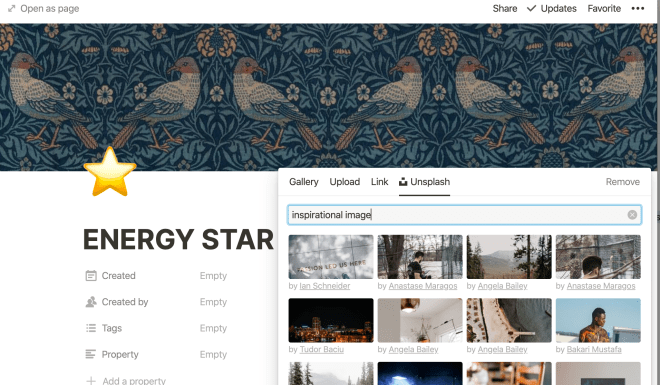
    Unsplash Integration - Notion

    There is also a wealth of different ways to format the information on your pages and organise them as you see fit, including collapsible sections, different headings, etc.

    rich text editor Notion

    Anyway, you’ve all seen rich text editors before… but it’s worth saying that the options here are far more fully-featured than I would have expected.

    File Handling and Embeds

    It should go without saying, but embedding content from other parts of the web like YouTube is really easy. However, at first I thought that file handling in terms of uploads might not be so great, based on various reviews talking about how great Evernote was at handling all kinds of different file types. In practice though, this wasn’t really the case. While you have to purposefully create an ’embed’ block first and then upload your file to Notion for it to display inline (if you just drag and drop, it will create a download link instead) – it is still perfectly functional, handling PDFs, MP3s, etc.

    File handling Notion

    The one caveat here is that while Notion is free for personal use, uploading files larger than 5mb requires a paid account – which starts at 4USD per month for an annual subscription (or 5USD on a monthly basis).

    How I use Notion

    Years ago I helped create a Wiki style ‘portal’ for a company that I worked for. The idea being to serve as a central Intranet dashboard full of links, news, and other resources that folks might need. The software we used wasn’t exactly up to scratch, but it got the job done. If Notion had been available back then, it would have fitted the bill perfectly – and that’s one of its major strengths.

    Instead of having all different kinds of data stored in different services that I inevitably forget about (Pocket, Evernote, Google Spreadsheets, etc), I now have a single personal ‘portal’ which displays a whole bunch of stuff that I need and use on a daily basis – or simply want to be reminded of. Links to commonly used sites, goals for the year, habits I want to track, articles I want to read, etc. There’s so much information collected and organised in the one place that it’s hard to show just what I mean, but here’s something of an insight…

    Notion homepage

    Having everything I need organised and presented in this way, where I can see the status of a bunch of different ongoing projects at a glance, and dig in deeper into the sub-pages for more information as required has been really liberating. Instead of just chucking every little thing I find on the web which might be useful one day into vaguely defined categories in Evernote (which never really worked very well), I now have things much more neatly defined, and feel so much more organised. It has lifted some kind of low-level mental pressure around accumulating so much data that I would never be able to find again because of its haphazard nature.

    Conclusion

    I really didn’t expect to take to Notion in the way that I have. While it did initially take some adjustment to understand its core kind of usage philosophy, and a bit of time to set up and input my data in a way that made sense for me, it has replaced and improved on so many different areas of my daily workflows that I can’t imagine going back to Evernote.

    Ultimately, the data that I save is now far more organised, far easier to access, and much more useful than it ever has been before as a result. I would definitely recommend it to anybody interested in keeping track of their digital knowledge base.

    There is so much more to the app than I can squeeze into a single post, including the ability to manipulate or query the databases via scripts, etc… and so I’ll post a few follow-ups with specific use cases for more details.

  • Remaining Productive with Things: The Pandemic Edition

    Back in March I wrote about how I managed my time using the task manager app, ‘Things’. The gist of that post was that rather than struggling to remember or stay on top of all of the various activities you want to complete (no matter how small) – you chuck them all into Things, and free up the mental energy that would otherwise be expended in tracking them.

    For a while, this approach worked really well, but over time I found that I was confronted every day with a huge list of tasks that needed completed, and there wasn’t any kind of tangible satisfaction in completing them, as I knew at midnight the next day’s tasks would appear on cue. Rather than helping to alleviate stress, Things began to contribute to the overwhelming pressure of everyday life, which had come sharply into focus thanks to national COVID lockdowns and varying restrictions. Things I was ment to enjoy (like making music) were reduced to yet another tickbox to be churned through.

    What made the above worse was that there were recurring tasks that I wanted to complete, but often failed to find time for. I didn’t want to take them off my daily list, but I didn’t want them to have the same mental load as other tasks.

    Taking inspiration from this blog post, I followed Andrea’s lead, and changed the way I approach task management with Things. Rather than having one large daily list of jobs to get through, I now have them separated into their respective categories. The tasks that I definitely want to complete that day come in at the top, under ‘Daily Tasks’, and I try to keep this to a manageable load, so that I can always clear them out. Other things that I want to get done, but don’t necessarily have to get done that specific day are then available for me to work through, based on how I feel/what energy I have that day.

    How my Things to do list is organised now.

    This new approach has made a huge difference to my relationship with the daily to do list. Rather than feeling like I am endlessly fighting a losing battle to keep ticking off checkboxes, I can now see at a glance exactly what tasks need to be done that day. By keeping those separate, deliberately chosen, and manageable, I no longer feel like the other bits and pieces that I want to do are a chore. If something isn’t in the Daily Tasks list – it can be done another day… and ironically, since adopting this method, I’ve gotten even more done than usual, because I don’t feel the same pressure to complete everything.

    Pomodoro

    One other thing that I have adopted which is worth mentioning is the Pomodoro technique. The general idea here is that you split up your time into chunks of about 20 minutes, and deliberately focus on a particular task for that period of time, before taking a break and either moving on to something else, or committing to another 20 minute period of focus.

    This notion isn’t anything new. I am sure I’m not the only one who sat in maths and thought ‘Okay just get through the next five minutes and then it’ll be another five minutes after that’. Plenty of people have written about this extensively elsewhere… but it’s not an approach that I’ve ever really come to use in any disciplined way. Breaking up my tasks at work was always too difficult, and concentrating for 20 minutes to then have a break and return to the same tasks felt too artificially scheduled for my liking.

    However… since I switched up my approach in Things, I’ve had success using the Pomodoro model for my own personal projects – particularly those that I want to get done but struggle to get the motivation to start. For example, I am currently learning Japanese, but sometimes (often) the prospect of firing up the flashcard app for an indeterminate amount of time seems like too much of a chore, and I put it off. Before I know it, I haven’t done it in days.

    Now, I sit down and say – okay, I’ll just do it for 20 minutes just now, and then go off and do something else. Knowing that it’s such a short amount of time means I can focus much more than I normally would, and I have been rattling through tasks like never before. This also helps me work out just how much time I actually spend or need to spend on certain activities to complete them, and it can be much less than I expected.

    We’ll see how this mutates and modifies as time goes on, but for now… this is the approach.

  • Staying Productive with Things

    Things Logo

    More than productivity

    I am a person that needs to have a bunch of different projects going on at any one time. Whether it’s making music, writing blogs, building weird keyboards, or restoring old iPods, if I don’t keep my mind busy, it quickly begins to turn in on itself. At the same time, my work involves managing a variety of disparate projects that can vary from day to day.

    All of this has become increasingly difficult to keep track of over the years, and none of the various calendars, diaries or bits of software I tried really helped. However, about six months ago my colleague and friend Bryan convinced me to give an app called ‘Things’ a go, and it has pretty much transformed how I manage my time. As well as becoming far more productive, I have found that I am far less stressed out, and feel more in control. I had never appreciated just how significant the cognitive load of having to juggle so many tasks was, or how much anxiety I had internalised as a result. Now, I no longer worry about forgetting to do something, or lie awake at night unable to sleep while my brain organises the things I have to do the next day.

    At the end of the day, Things is just a To Do list app, but it’s an especially pleasant one to use, with a really smart workflow. Rather than wasting what Bryan would call ‘brain cycles’ worrying about er, things, you let Things take care of them. In particular, it wasn’t until I found myself increasingly filled with despair about the unfolding COVID-19 pandemic that I realised just how invaluable Things had become for keeping my mind clear. Rather than allow myself to become consumed with the developing news cycle, I instead chose to rely on Things more, and focus on what I wanted to get done in the following days. While it seems trivial, this helped tremendously. So in this blog I wanted to share a bit about how I make use of Things, and what I’ve learned.

    The Basics

    Things is a beautifully designed to-do list app from Cultured Code which runs on both Mac and iOS. It doesn’t run on Windows, and (annoyingly) there is no web or Android version (though see this post for my workaround). The current version at the time of writing is Things 3. It is apparently based on the ‘Getting Things Done‘ methodology.

    Boiled down, Things essentially just provides a very pleasant way to quickly create and manage tasks – the beauty of it though is the myriad of different ways that you can view and organise these. At its most simple, you have an Inbox where you can dump all sorts of to do items to be organised, and then categorise them into different subject matter areas or projects.

    Things Inbox

    Tasks can be set to only appear on a specific ‘due date’ – presented in the ‘Today’ window. They can also be set to recur upon completion, or at set intervals.

    Things Today view

    For tasks that absolutely must be completed by a certain date, you can flag them up with a deadline.

    Deadline - Things

    Selecting an Area or Project on the left will display only the tasks that are associated with it, if you want to focus on something specifically.

    Things

    If you have tasks that you want to get to, but they aren’t time specific, you can throw them in the ‘Anytime’  bucket… and for ideas that you want to explore at some point, they can be filed away under ‘Someday’ for when you get time. You can also tag any task to further organise them to whatever level of detail you want.

    Things Anytime

    There are a bunch of other features as well which I won’t go into in any depth just now – such as the Logbook which keeps track of all of your completed tasks, the calendar integration so you see what appointments you have on any particular day, and the ‘Upcoming’ view which provides a longer term perspective of what’s on the horizon.

    How I use Things: Workflow, Tips & Tricks

    Everybody will use Things slightly differently, and I borrowed a lot of my approach from my sensei Bryan. However, here’s some of what I’ve found works:

    Add everything – no matter how small – I literally add everything I need to remember to do as a task into Things. Whether that’s remembering to wash the dishes, or to chop carrots for dinner, I offload everything onto there so that I don’t need to think about it. At first this can seem pretty ridiculous, or like you are outsourcing your faculties to an app, but it frees up your mind to focus on other things that are more important. This also means that you have a mixture of things you enjoy as well as specific obligations – which helps to avoid dreading opening the app in the first place.

    Make use of shortcuts – There are a bunch of useful shortcuts, the most important of which lets you very quickly add in To Do list items to your inbox while you are browsing the web, to be categorised later. Learn these, as the less friction you have in adding tasks or managing them, the easier and more natural it becomes – and the more you can focus on what you are doing at the time.

    Only add things to your daily pile that you can actually achieve – It took me a while to realise that I would add all sorts of tasks to my daily list that I wanted to do, but which realistically I would never be able to get done. That ended up pretty demoralising, as I saw the same To Do items rolling over day after day, unchecked. Now, I only add things that I either have to get done, or which I have a reasonable shot at completing, and it has been far more effective.

    Organise your tasks for the following day – Every night I look over the tasks I have for the next day, and organise them roughly by when I want to complete them, and ask myself what seems reasonable to do in one day. If it seems like there’s too much, I punt it to the following day. This ritual helps me organise my thoughts and get to sleep faster.

    Set smaller goals, and be judicious with repeating tasks – It can be tempting to set a goal like ‘I will do one hour of Japanese study every day!’ and to add it in as a repeating task that appears on your list on the stroke of midnight. However, I found that this was actually counter-productive, as I began to just ignore these broad repeating tasks. Instead, I would manually set much more specific, one off tasks, like ‘Do 2 lessons on DuoLingo’ – which made them far easier to complete.

    Use tags creatively – There are all sorts of cool ways you can make use of tags. For a practical example… I save lots of news articles to Pocket, but never actually get around to reading them. The same applies to YouTube videos. Now what I do is chuck them into Things, and tag them with the time they will take to complete – ’10m’ for example. Then, whenever I have a spare ten minutes and I’m not sure what to do – I can dip in and quickly find something to fill that time.

    Separate out evening tasks – There’s no point having stuff you have to do after dinner wrapped up in the same list as everything else, and Things lets you specifically ring-fence tasks for the evening within a specific day. Make use of this!

    Projects are useful! – I didn’t really utilise the Projects feature for ages, relying instead on individual tasks within Areas, but then I realised you could put Projects under Areas. Game changer. Now I use Projects a lot to manage groups of different tasks that add up to a larger goal, which is really useful.

    Summary

    …and that’s it. At first I didn’t really get what the big deal with Things was, and thought some of the practices were a bit bizarre and redundant, but I genuinely think that organising things in this way has made a huge difference to both my productivity, sense of achievement, and overall zen. It ain’t cheap, and they need to hurry up and just make an Android app already damnit, but I’m not sure what I would do without it at this point.

    Things Blog

  • Sabbatical Aims

    Every five years, Automattic employees can take a three month sabbatical from work to get away from the computer and recharge. The idea is that it helps highlight areas where you as an individual have unwittingly become solely responsible for particular tasks, and allows you to come back with a refreshed perspective and enthusiasm. That’s my take on things anyway.

    I have been employed by Automattic for well over five years at this point, and I sign off at the start of next week – having pushed the date back a bit to make sure the weather was a bit nicer (!).

    Three months is a fair amount of time to fill, but it can easily end up being filled with nothing in particular if you don’t take the time to plan out what you want to do. For that reason, I’m posting this up with my aims for the next few months, so I can look back on it at the end of June and see whether I actually did any of the things I said I would.

    So here it is. Over the sabbatical I want to:

    1. Travel. I have a number of trips booked – from spending some time in Japan, to visiting my parents in Canada.
    2. See more of Scotland. I have been all over Scotland, but there are still plenty of areas that I haven’t been. I don’t have any concrete plans yet, but I want to get to at least one or two different places – preferably further north than Inverness.
    3. Make time for old friends. I have too many people that I haven’t seen in ages, and I want to change that. I’ve booked a long weekend to visit some folks down south in May to start with.
    4. Get better at guitar. Despite having played guitar for about 18 years, I am nowhere near as proficient as I should be. Rather than learn other people’s songs, I always just wrote my own, and my skills have suffered a bit as a result. I’ve bought some official tab books from bands I like, and want to use them to get much more proficient. The way I will test whether I’ve done this will be whether or not I can confidently play a significant number of songs from those books that I couldn’t play before.
    5. Write and record music. I have a few musical projects on the go at the moment, and not enough time to really sit down to write and record. I want to make use of the time I have, and release at least one album by the end of June.
    6. Finish and submit another journal article. I have been working on a second journal article for a while, but not found the time to finish it. I want to do so, and submit it for publication.
    7. Read more. Specifically, I want to take the time to finish and enjoy a pile of books that have been building up. I’m keeping a list of them all to see how many I get through.
    8. Go to the gym regularly. I already go to the gym at least once a week, but it’s too easy to find excuses when you are busy working. I want that to change.
    9. Take more photos. I haven’t been taking many pictures over the past few months, and I want to get back into the habit. Specifically, shooting and developing a bunch of film.
    10. Tidy up. This is a boring one, but I want to get some things in order. Marie Kondo style.

    so that’s it: my ten aims, out there for posterity if not accountability. Looking over it now, it’s probably too much to pack in to what I am sure will be a few months that fly by – but it’s good to aim high. I’ll report back once the sabbatical is over and see how I got on.

  • Productivity Apps: Keyboard Maestro

    keyboard_maestro_logoI’ve had this article on the back burner for almost three years now, but for the next thrilling instalment of my productivity app blogs, I’ll be turning to look at Keyboard Maestro.

    Don’t let the somewhat dated website put you off, the app itself is unbelievably powerful. I have to admit to being wary when I first tried it out. The learning curve is steep, and the documentation pretty unclear – especially when compared to the other productivity apps that are available. However, after months years of sustained use, my feelings towards Keyboard Maestro have completely changed. It’s tough to get into, but so worth it. I honestly don’t know what I would do without it at this point.

    So if Keyboard Maestro is so great, why did it take me so long to publish this? Well, there’s a few reasons. Firstly, there aren’t so many general use cases for Keyboard Maestro – at least not for me. Instead, it’s an app that’s best for repetitive tasks that are very specific to each user’s needs, which makes it difficult to give good examples. Secondly, it’s an app that you tend to set up and forget… before rediscovering it later on when your needs have changed, and you realise: “Oh! Keyboard Maestro could make this way easier!”. I’ve gone through that cycle a number of times, and after rediscovering just how awesome it is, I decided to finally complete this post.

    What does it do?

    Okay okay so Keyboard Maestro is great, but what does it actually do?. This is a good question, as it isn’t immediately obvious. Essentially, Keyboard Maestro allows you to take any task that you have to repeat, and automates it. If you’re familiar with Alfred, think of Alfred workflows, but on steroids. The key difference is that instead of having to write Applescript for every action you want to complete (which is still an option, by the way), there are a whole bunch of options baked in. Whether that’s telling the mouse to move and click on a certain point, displaying a popup message, getting an image size, filling in a field on a website, or whatever. You get a lot of control from the get go.

    Keyboard Maestro Actions
    Some of the ‘actions’ available.


    The sheer power of Keyboard Maestro is also its undoing in a way. It’s easy to look at the list of actions and wonder when you will ever use any of them. The UI is not the most intuitive, and you’d be forgiven for giving up at the beginning purely on that basis alone.

    If you want to carry out simple, general tasks, then there may well be a nicer app that lets you do those things. However, that isn’t the point of Keyboard Maestro. Keyboard Maestro is there to help you automate pretty much any task that you can think of.

    In addition to the automation, there is a whole host of other cool features that you can do a deep dive into – such as an extensive multi clipboard manager, application switcher, and others – but for me the real glory lies in the macros.

    What can it do for me?


    One of the biggest hurdles to starting off with Keyboard Maestro is working out exactly what you’ll use it for. It takes a conscious effort to work out what tasks you could automate – which isn’t necessarily something you thought was possible beforehand. Once you do sit down and give it some attention though, you’ll soon come up with plenty. Do you have to fill out specific fields on a website more than once? Use a macro. Do you need to convert HTML to markdown? Use a macro. Need to extract URLs from a big block of text? Macro. The possibilities are endless.

    As part of my job, I regularly have to review and respond to reports about different websites using a helpdesk system. Each one (generally) requires me to:

    1. Find the website URL in the e-mail and open it.
    2. Decide what to do.
    3. Note down the action taken in certain circumstances.
    4. Reply by copying a specific part of the original message, and quoting it back in a certain format before providing an appropriate response.
    5. Select a certain option to mark the issue as ‘Resolved’ or ‘On Hold’.

    All of these steps are fairly straightforward, but a lot of time is taken up by clicking through the same tasks for each – even when I use a textexpander or snippet manager like Alfred. Sometimes the URLs are jumbled up and I need to fix them before opening or responding, or they are buried in huge blocks of text… etc. However, with Keyboard Maestro, I can reduce this all to a couple of key presses, with a couple of macros doing all of the following:

    1. Extracting all of the URLs from the messages, and opening them in new windows.
    2. Pasting the URLs in the correct quoted format at the top of the reply, along with the appropriate response.
    3. Adding whatever notes needed to track the action taken in a specific field.
    4. Marking the issue Resolved or On Hold as appropriate.

    The only thing Keyboard Maestro doesn’t do is decide what action to take – which is just as well really, for a variety of reasons!

    Like many of the examples, that one is very specific, but it demonstrates a bit of how granular and useful Keyboard Maestro macros can be – and will hopefully get you thinking about your own use cases. Here are some other more general tasks I regularly deploy macros for:

    • Inserting a URL wrapped in a href tags.
    • Pasting text with different styles of quotes depending on the situation.
    • Parsing blocks of text to extract URLs and/or e-mail addresses.
    • Getting ID numbers from long URLs.
    • Pasting items in a bulleted or numbered list automatically.
    • Filling out forms online.
    • Copying the current URL from my browser window (and doing stuff with it).

    The most powerful and useful ones are those that have very specific, work related use cases. With a bit of imagination, you’ll come up with your own, so I’d encourage you to give it a bash.

    Triggers

    To wrap this up, I wanted to highlight one more feature of Keyboard Maestro that makes it stand out from other productivity apps. For those veterans amongst us who regularly make use of workflow improvements, it’s easy to run out of hotkey assignments, and Keyboard Maestro has a bunch of different ways to solve that problem. First off is the use of ‘palettes’, which lets you assign the same hotkey to different macros – and then select them from a menu – or to activate different hotkey sets depending on what you’re working on that day.

    If you already use Alfred, Keyboard Maestro is a brilliant complement, rather than a replacement in this way too. There is a specific Alfred workflow that lets you search and trigger Keyboard Maestro macros from the Alfred search bar, which is incredibly useful for those that you may use occasionally, but don’t want to dedicate a precious hotkey to: Alfred Maestro.

    Finally, triggers aren’t just confined to mere hotkeys. Oh no. Pretty much any event you can think of can kick off a macro. If you want certain changes to happen when you connect to a particular WiFi, you can make that happen. Execute commands remotely by running Keyboard Maestro on a server? Why not. Run certain checks when a USB device is plugged in? Easy. You can even have Keyboard Maestro react to MIDI notes and values, which opens up a whole world of interesting hardware controllers aside from the keyboard… something I’ll be exploring in the next post.

    In the meantime, go forth, and automate!


  • Real Punishments Needed for DMCA Takedown Abuse

    Note: The opinions expressed within are mine, and mine alone – not necessarily endorsed by Automattic or WordPress.com.

    Last week Automattic released an update to our transparency report, detailing the number of takedown and information requests that were received between January and the end of June this year – as well as the number that had been acted upon, or rejected. There has been some good coverage of what’s included in the report by TorrentFreak, ARSTechnica, and TechDirt.

    One area that’s particularly interesting is that relating to the DMCA notification and takedown process, regarding instances of alleged copyright infringement. The full figures are available on the page itself, but here are the highlights:

    WordPress.com Transparency Report

    If you’re like me, it can be difficult to pull out something meaningful from a table of figures, at least at first glance. The important thing to note here is that 43% of the total notices received were rejected – either for being incomplete, or abusive. This figure rises to 67% if you remove sites that were ultimately suspended for a terms of service violation from the ‘Percentage of notices where some or all content was removed’ column.

    Incomplete notices can be anything from the complainant not including a signature; failing to specify the content that they are claiming copyright over; or not including the required statements ‘under penalty of perjury’. Abusive notices include those that target material which is not copyrightable (such as trademarks or allegedly defamatory content); where the complainant misrepresents their copyright; or attempts to prevent fair use of the material – protected by US copyright law.

    Many complainants simply want to get content removed from the web, irrespective of which route they have to take to get it. As a result, a variety of different tactics are deployed, particularly when a third party agent is engaged to carry out the task. For example, the wording of takedown demands may be fudged in order to give them the appearance of a valid DMCA takedown notification, whilst failing to substantively fulfil the statutory requirements. In other cases, claims regarding alleged copyright infringement are mingled together with threats concerning trademark infringement or defamation – obfuscating the invalidity of the DMCA takedown itself in the process. Web Sheriff in particular have been known to adopt this practice, with ‘kitchen sink’ takedown demands listing what seems like every law passed in the last 20 years incase one of them might apply in any given scenario. The Pirate Bay have infamously mocked Web Sheriff in the past for some of their tactics:

    Pirate Bay Web Sheriff Mockery

    It can be a difficult process to manually review and untangle exactly what a complaint relates to, and whether or not it is a valid DMCA takedown. Clarification e-mails often go ignore, something that is particularly true in cases where the notifications are being generated by bots. Replying to point out that a notification is incomplete, or that the material is actually hosted elsewhere in many cases is met by nothing except a deaf ear, and a duplicate takedown demand the following day.

    Whilst the DMCA’s safe harbor provisions are designed to provide protection for third party intermediaries as well as the rights of copyright holders, the phenomenon of automated takedown demands has resulted in a massively lopsided burden on those service providers who take their responsibilities seriously, and do not just acquiesce to every single takedown notification automatically.

    Complainants are able to submit grossly inaccurate DMCA takedowns on a massive scale, routinely through the use of automated systems that indiscriminately target particular keywords across the web – all without any real fear of legal consequence. The sheer volume notices generated means that the vast majority of service providers simply remove content immediately and automatically, without scrutinising them for their formal completeness or legal validity. The few that do choose to go through them manually in order to protect their users (like WordPress.com), end up facing a huge burden.

    Without stronger statutory consequences for those who abuse the DMCA’s notification and takedown system, the battle for freedom of expression online will be increasingly difficult. The majority of service providers will inevitably default to censorship in the first instance, as the number of notifications (and therefore the resources required to push back effectively) increases.

  • DMCA Rejection Retaliation

    Every day WordPress.com receive a sizeable number of DMCA takedown notifications, and every day I personally reject a fair number of them for being incomplete, invalid, or fraudulent.

    Many of those who find their takedown notifications being rejected are displeased with the decision, used to service providers choosing to automatically process them, shifting the burden of proof onto the user, rather than take on the risk of liability for themselves. Unsurprisingly, this displeasure is often most aggressively expressed by dedicated third party agents whose sole business model is based on scouring the web for potentially infringing acts, and who get paid per removal. Some people may say that with a results-driven financial incentive to have material taken offline, that there is more of a chance for the DMCA process to be used inappropriately – but that’s something you’ll need to make your minds up on independently.

    Yesterday a colleague let me know about one such organisation that had evidently found some of their notifications rejected in the past, who had then chosen to take to Twitter to voice their displeasure about me doing my job.

    Screen Shot 2015-02-24 at 23.49.14

    The image they linked to was of me, lying on the grass clutching a bottle of Buckfast – the weekend of the Queen’s Jubilee, if memory serves correctly.

    The one they used wasn’t really very good quality though, so here’s a higher resolution one incase they want to try again:

    crail

    I’m not entirely sure what they were trying to achieve to be honest. It’s not as if pictures of me intoxicated are really all that hard to find, after all. My occasional penchant for Buckfast isn’t exactly a secret at Automattic either, given that I did my first annual ‘flash talk’ at the all-company Grand Meetup in Utah on the ol’ tonic wine.

    Somebody (who shall remain nameless) suggested we reply to say:

    Even smashed on Bucky, Clicky Steve knows more about the DMCA than RemoveYourMedia

    Which is so beautiful it almost brought a tear to my eye.

    That wasn’t the only tweet they aimed at me though.

    Screen Shot 2015-02-24 at 23.49.26

    It’s pretty bizarre that they would choose to use that case about Napster to illustrate the potential liability for service providers guilty of contributory infringement, since there are far more recent, compelling, and relevant judgements they could have made their point with. Ah well, better luck next time, eh? As far as I’m aware they never actually sued after these bold statements on social media, but maybe they’re still preparing the paper work.

    At the end of the day, whilst this has given me a hearty chuckle before I turn in for the night, there’s no getting away from the fact that it’s not only petty, but ridiculously unprofessional. Making ad hominem attacks on employees of a company for rejecting your legal demands is pretty sad. If I was a copyright holder, I wouldn’t be too impressed to find the agency I had employed to protect my intellectual property deploying tactics like this. Then again, it might be a bigger deal if they had more than 1200 followers…

    In the world of the DMCA, there’s only one thing dumber than submitting bogus takedown notifications, and that’s having a tantrum on Twitter when your bogus takedowns are rejected.