I am a big fan of hardware trackers, and a few months ago, I got a Pico Tracker Advance from Xiphonics.
I won’t go into all of the ins-and-outs of what a tracker is, but for those that don’t know – it’s a way of composing music popularised by software like OctaMED on the Amiga, and LSDJ on the Game Boy.
The whole point of the Pico Tracker Advance is that you can write tunes on the go, with its rather nice portable handheld form. However, a computer inevitably ends up involved in the process at various stages – to transfer samples, or export your songs.
As something of a well-heeled tracker enthusiast, I know from experience that there are a bunch of things that are just easier on the computer – and so I built out a collection of tools specifically designed to augment the whole process.
There are a pile of features, but some of the key ones are:
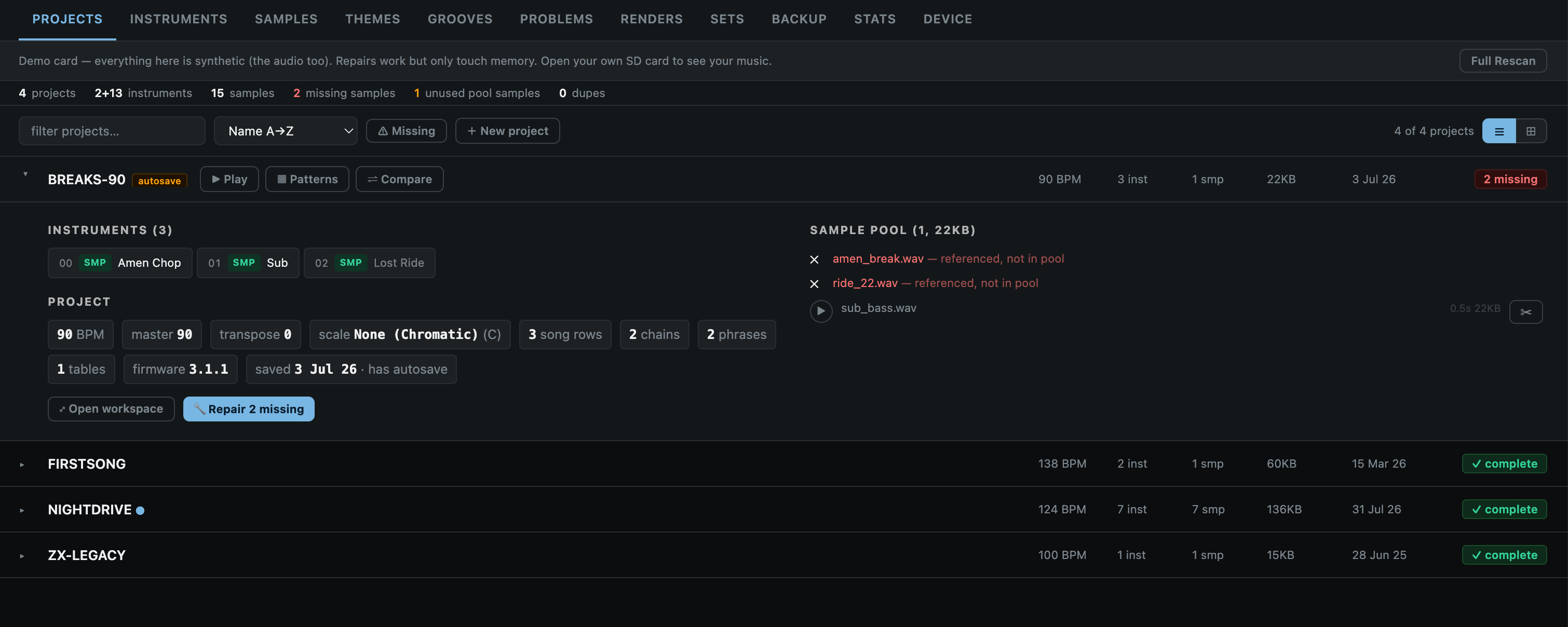
Project manager – view, preview, and edit projects – including exporting stems/mixdowns.
Setlist builder – to create custom folders of songs in order, ready for playing live.
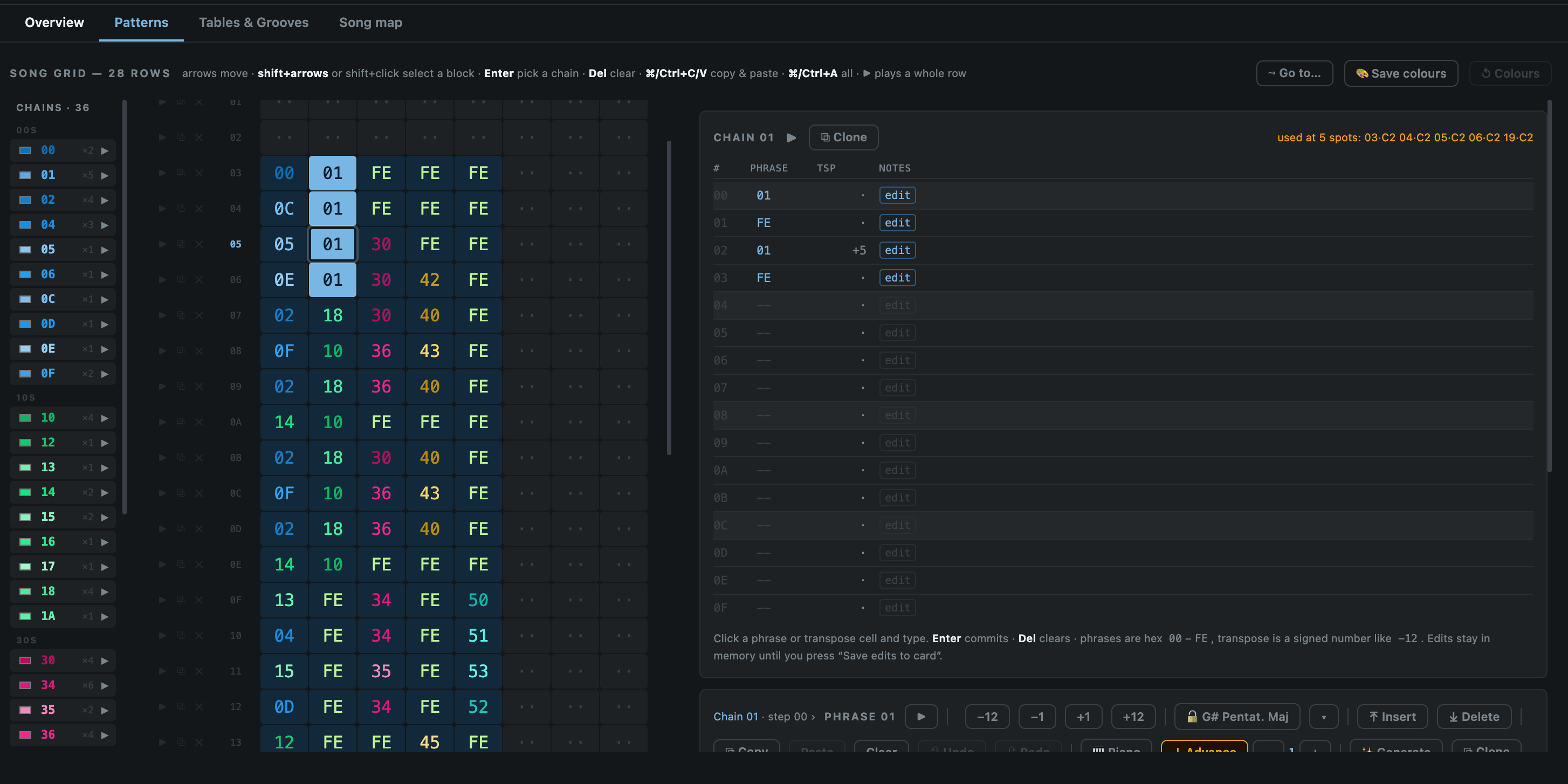
Pattern editor – tweak patterns/edit songs from the browser.
Sample manager – analyse, preview, delete, and identify broken links to samples.
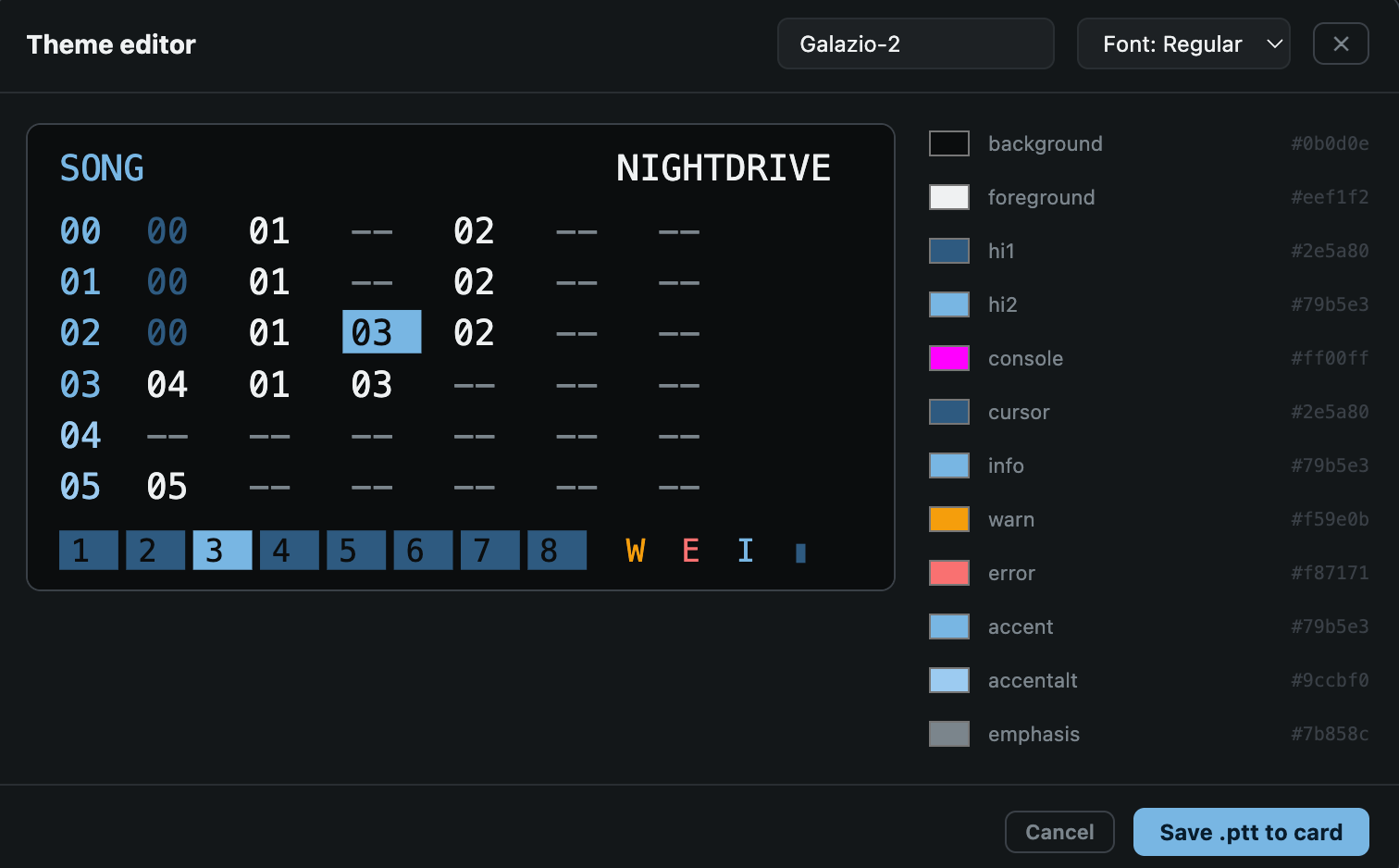
Theme manager – Create, edit, preview, and apply themes.
Audio Reactive Video Mirror – This is a big fun one for me. It lets you use the remote UI to mirror the display, apply effects and also have them react to incoming audio. Good for playing live/recording via OBS for music videos or whatever.
Fair Warning: This is a collection of utilities I put together for my own personal whims, and development is still experimental. Feel free to try it out, but make sure to backup your projects and SD card to avoid any unintended data loss. I don’t take responsibility for any screw-ups!
A long time ago I bought a set of Nuraphones – these unique, over-ear headphones that promised immersive sound and incredible bass.
The results were good, and to this day I haven’t ever tried any other headphones like them. They weren’t without their flaws though: bulky, uncomfortable, and with proprietary cables – all factors which meant I haven’t really used them much over the last few years.
Recently, I dug them out to have another go, and discovered a couple of things:
A simple mod had been discovered that made the inner-ear tips a bit less fatiguing on the ol’ lugs.
The manufacturer had been bought out, and the nuraphones discontinued in 2023.
While it was great news that I could now enjoy the impressive sound of these things without wanting to rip my ears out from the pain, the fact they were no longer going to be supported by the manufacturer was a real issue, because certain key settings of the headphones can only be modified with the use of a mobile app. It was just a matter of time before that was no longer supported.
Thankfully, after a bit of Googling, I found that the community had created a few different desktop applications to allow access to these settings.
The projects that already existed
The star of the show is opennura by James Young: an open-source Mac app that already spoke the nuraphone’s control protocol (Qualcomm GAIA) and had the encryption handshake figured out. There was just one catch. Every nuraphone has a unique encryption key baked into it, and without that key an app can connect to the headphones but not actually control them. The official mobile app fetched the key from Nura’s servers when you first set the headphones up, and there was no way to do that on a Mac.
That piece of the puzzle had been solved by Nura-Windows, an impressively thorough bit of reverse engineering by Callum Carmicheal. His project worked out the entire ‘provisioning’ dance: sign in with your Nura account, and the app lets the headphones communicate with the Nura servers to get your key. Brilliant. Also: Windows only.
So the situation was a Mac app that couldn’t get the key, and a Windows app that could. Huge thanks to both James and Callum, because without their work none of what follows would exist.
The Application
I got in touch with James to ask if he would be open to releasing his work under the GPL, and me forking it – to which he kindly agreed (the Nura Windows project was already released under an Apache 2 License).
With a lot of help from Claude, I ported the key recovery flow from the Windows project over to macOS. Along the way I ran into a number of issues, including the discovery that the headphones wouldn’t play nicely for me over bluetooth LE – only classic Bluetooth.
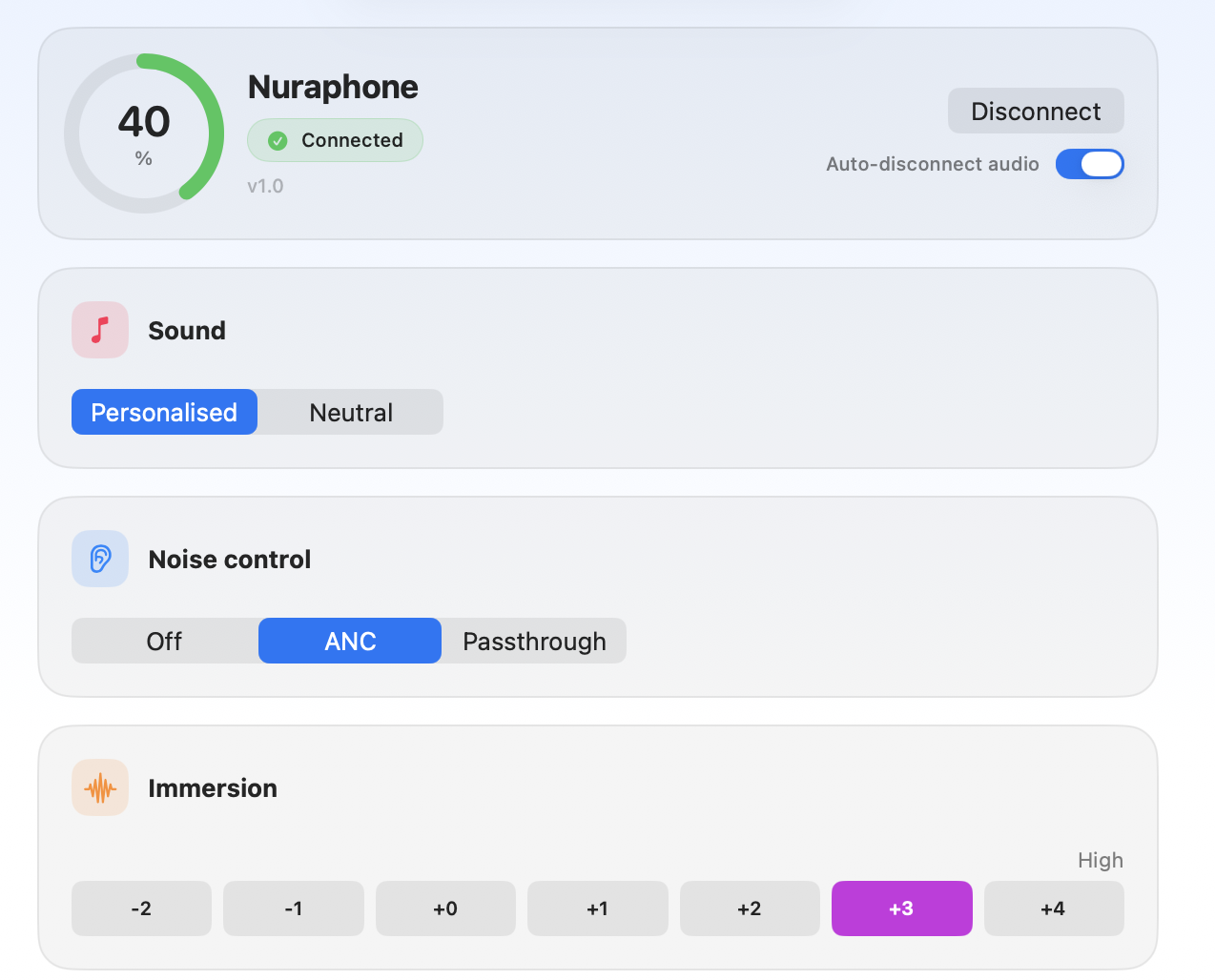
Anyway, the result of my experimentation is an evolution of OpenNura for Mac: a native macOS app that can recover your headphone’s key with nothing but your Nura account and a Mac, and then gives you full control of the important settings. Noise cancelling and social mode, personalised sound, immersion, switching and renaming profiles, remapping the touch buttons, and even a wee visualisation of your hearing profiles so you can compare them.
The initial screenMain screen controls
As a bonus, there’s also a menu bar app and global, user-definable hotkeys too, so you can quickly switch things mid-song.
The menu bar
Final Words
There’s a signed and notarised build of the Mac app on the releases page if you just want to download it, and I am chuffed to see that the PR has already been merged into the official project.
It might be worth doing this even if you don’t plan to use the app day-to-day, as it means you can retrieve your key and ensure that your headphones remain controllable in the years to come, even if Nura’s servers eventually go offline. On the key retrieval specifically: it signs in with your own Nura account, talks only to Nura’s official servers, and stores the key locally in your Mac’s Keychain. Nothing goes anywhere else, and it’s all open source so you can check for yourself (or build from source if you’d rather not run a binary).
I am really pleased that nearly a decade after I first got these headphones, with manufacturer support disappearing, I can now use these more seamlessly with my laptop, and hopefully ensure that’s the case even when the official mobile app stops working. All thanks to the community. Open source at its best.
—
Exciting Disclaimer Notes
A word of warning if you try this yourself: these are reverse-engineered protocols talking to hardware strapped to your ears. At one point during development the headphones let out a genuinely deafening tone, which prompted a whole layer of safety guards in the app. It’s all in the README, but the short version is: first time you connect, keep the tips out of your ears. Use at your own risk.
Nura and Nuraphone are trademarks of their respective owners. This non-commercial project is not affiliated with or endorsed by them in any way; the names are used only to identify compatible hardware.
I am a big fan of colourful lights… whether they are neon, fairy, or ambi. I am also a big fan of custom mechanical keyboards. Unfortunately, I’ve never been able to bring those two interests together, as the boards that I’ve built were too fiddly or didn’t quite bring enough LEDs to the party. However, last month I came across an amazing keyboard build from /u/_GEIST_ on Reddit, which inspired me to have another go.
Digging into the specs of that build, I discovered that the relatively cheap BM40 PCB not only supported RGB underglow, but had the holy grail of individual LEDs per key… and that in the latest versions of the QMK keyboard software, you could get some really cool animations that would be triggered on each keypress (or release).
An unassuming beastie.
The parts
One of the big challenges of building custom mechanical keyboards is finding suitable parts for the project you want to build. Often, getting affordable cases can be tricky, and when you do find them, they are often of poor quality. There’s also the additional challenge of putting together the PCB with the required components. I have reasonable soldering skills, but having to connect up all of the resistors, diodes, and switches is an exercise in patience which I do not have… especially when you start to add in all of the LEDs. There’s also always the danger that you mess something up, and ruin the PCB, which is quite possible if you aren’t overly familiar with building keyboards. This is something I had managed to do fairly recently, and so I didn’t fancy experiencing another failure so soon after.
PCB + Case
Enter the BM40 board. Not only did this have all of the LEDs, and came with the components pre-soldered, it was also hot-swappable, which means that you can just click the switches into place, without having to solder them in. Brilliant. I picked up this, along with a case which had a diffused bottom panel to let the RGB lights shine through from KPRepublic on Aliexpress. The PCB connects via USB C, which is a nice touch.
Switches + Caps
When it comes to switches, I prefer really clicky keys. The clickier the better. However, that doesn’t always win you many popularity contests, and since my main keyboard has Cherry Blues in it, I decided to go for a more tacticle switch. I had read good things about the Holy Panda tactile switches, and found the Everglide Oreos, which claimed to be similar. If you aren’t familiar with keyboard nomenclature, this means that they wouldn’t be obviously ‘clicky’ to press, but would have some kind of a bump to them on the way down (as opposed to being ‘linear’, and therefore smooth). The other reason I went with these is because they had a smokey black casing, which would let the LEDs shine through.
For the keycaps, I went with my trusty flat DSA profile (rather than other profiles which are curved, or which have a shape change depending on the row and position of the key). I also selected the same kind of smokey black translucent colour to match the switches, and let the LEDs do their thing. I often use blank DSA caps as they are cheaper, and it means I can move them around my boards without having to worry about what is printed on them.
Annoyingly, I didn’t realise that the board was not made up of individual 1u keys like the Planck or Preonic… in the sense that it has a 2u space bar key. This meant that my 1u DSA caps wouldn’t fit. I found a temporary solid white 2u cap that I’ve put in place for now, but it’s not the correct profile, so I’ll need to revisit that. Finding a 2u translucent keycap in the DSA profile is proving easier said than done unfortunately.
Links + Cost
BM40 PCB (Kit 1 with 2u stabilizers for the spacebar) – $37.52.
Putting the kit together was pretty easy. All you have to do is unscrew the bottom plate, hold the PCB in place and then connect the switches through the holes in the top of the case. However, there were a couple of stumbling blocks:
There was no screws included to attach the PCB to the case, so the keys hold it in place. This makes getting it into position and not damaging the first few keys you attach a bit tricky.
You need to install the keyboard spacer onto the PCB before you start attaching the keys. This means assembling it, which isn’t all that clear if you haven’t put one together before. After some frantic YouTubing I managed to figure it out, and had to take all the switches off again.
Flashing the software
The BM40 comes with its own software, but I immediately ditched it in favour of the de-facto standard QMK. There is no hardware reset button on the PCB to allow you to put it into DFU mode to flash the firmware, but there are two exposed points marked ‘RES’ which you can bridge with tweezers. This isn’t especially accessible given that the case is sealed up afterwards, so I made sure to include a soft RESET key on one of my custom layers.
I did run into a bit of an issue initially, where I couldn’t get some of the QMK functions to work, such as the all-important custom LED animations. With help from the aforementioned _GEIST_, who kindly sent me his config files, I realised that I had flashed the software with the QMK version provided by the keyboard manufacturer, which was out of date. Re-flashing with the bm40hsrgb settings provided with the latest QMK build (which I then customised), got everything to work as it should.
The Keymap
I already have a keymap set up which I have refined over time for my Planck – which is similar to the BM40, in that it has about the same number of keys, so I stuck with an evolution of that, which makes it easier to switch between the boards. I touch type, and don’t really use the bumps on the keys to indicate finger position, so having blank keycaps isn’t really an issue for me unless there are special characters or macros which I need to remember.
One of the cool things about having under-key LEDs is that theoretically I could code up a layout which maps certain colours to certain keys that I want to stand out. This isn’t something I’ve bothered looking into yet as I don’t feel like I need it, but it does make me think that I could build one of these boards as a dedicated MIDI controller, and change the keys depending on the notes of the scale. That’s probably a project for another day… but something I’m considering. Watch this space.
Anyway, here is how my keys are laid out at the time of writing. There are four layers. The first layer is the base layer. The other layers are accessed via a combination of keypresses, just like you would use the shift key to access capital letters on a ‘regular’ keyboard.
As well as the usual keys and media shortcuts, I have a bunch of custom shortcuts set up. For example, Alfred’s search has its own dedicated key on the base layer since I use it so often, as do my clipboard and bookmark managers. I also have keys specifically for copying, pasting, cutting; keys to copy the active URL in Chrome, and to strip down a long URL to its root (managed via Keyboard Maestro); and keys to perform tasks which become a bit trickier when you have a smaller board… like taking a screenshot.
I’ve uploaded my keymap to GitHub for those of you who want to see the actual code.
I’ve managed to configure things to change the colour of the keys temporarily when I activate layer 1 or 2, which is pretty useful. I can’t quite get it to work for the ‘adjust’ layer though, so if anybody has any tips on how to imrove the code, please let me know. I have a couple of ideas, but my brain is begining to melt looking at it, so I’ve given up for now.
RGB Animations
QMK’s built in RGB animations are awesome. Below I’ve uploaded a video running through some of the effects:
Note that I deliberately didn’t record sound, as there’s far too many people who will over-analyse the sound of the switches, and that’s one can of worms I didn’t want to open.
The Judgement
This is my fifth mechanical keyboard, and the third one that I’ve built (successfully) myself. It does feel a bit like cheating to say I built it, since it is hot-swappable and so couldn’t get much easier. However, it’s also probably my favourite. The case has a wonderful heft to it that the aluminium frame I have for my Planck doesn’t, and I love the LEDs. I had considered getting different coloured translucent keycaps, but the all-black colour scheme is so unassuming that it adds to their effect, and they are so bright that the cap colour doesn’t really matter when they are on. I’m really pleased with it overall, and glad _GEIST_ didn’t mind that I shamefully copied their idea. It is a bit of a shame that the underglow isn’t quite as prominent due to the solid black sides of the case, so as a minor point it would be great if there was a slight cutaway round the edges, but that’s just being petty.
The one thing that I’m not wild about is the choice of switches. While the Oreos are fine, they are very light, and not as tactile as I would like, at least not compared to the Outemu sky switches in my Planck. I end up bottoming out on them to such an extent that I may as well just have clicky keys in there, so I might end up changing them out at some point to find a better option… though they are growing on me. At the end of the day, having the option is the beauty of a hot-swappable board! Whatever happens, I definitely need to find a translucent 2u DSA keycap though, as the current one is driving me nuts. Even though the white looks pretty cool, it feels and sounds different to the rest of the board, and not in a good way.
Perhaps one other thing I should mention is that the LEDs run fairly hot. I guess that might be expected given how bright they are, but it does make me wonder about what their lifespan will be. On top of that, I will probably be making use of the auto LED off feature built into QMK to avoid any… accidental fires. Better safe than sorry. Of course, I could just run them at something less than maximum brightness, but where would the fun be in that?!
A few years ago, I realised that I no longer had a good portable music player. Sure, there was my mobile – but I was still using an iPhone at the time, which could store about 10 songs before its pitiful internal, non-expandable memory got filled up. I longed for the golden days of iPods… back when they were cutting edge and had nice glowy buttons and scroll wheels and that nostalgic clicky sound. After a bit of Googling it seemed like it would be easy enough to pick up an old iPod and stick a new hard-drive and battery in – so that’s what I decided to do. However, things didn’t go especially smoothly. Below is my overly long account of my journey to repair the damn thing which nobody needs or wants, but since we are all currently locked inside thanks to the Coronavirus, it seems like as good a time as any.
The Restoration Journey
I didn’t want just any old iPod. I wanted the 3rd Generation iPod specifically. Why? Because that was arguably the best design – with a nice, smooth scrollwheel, and separate touch sensitive buttons. Looking around eBay, there were a few that were listed as ‘just needing a new hard drive’ for under twenty quid, but I decided to play it safe and get one that was fully working in the first place, to avoid other unseen problems cropping up. In the end, I went for a 20GB model for about £40 which seemed in decent enough nick. I picked up a battery with much larger capacity than the original (£9), and an 80GB hard drive (£28) – supposedly the maximum size that would work with this model. Along with the special tools to open the iPod without breaking it, the total cost so far is at: £90.
When the iPod arrived, everything worked as expected, but it was a lot more beaten up than I had expected. I always took really good care of my old one, so was a bit miffed that this one was rough. I hummed and hawwed for a while, before deciding to buy a whole new front plate, as I knew I wouldn’t be happy having upgraded all the other bits and then having a scratched up screen. I managed to track one down at a spare parts site, which cost about £20. It turned out I also needed a very particular size of Torx screw to get the logic board off and transferred over, so that brings the total cost at this point to £115.
The front plate and screwdriver finally arrived, and I was pretty pleased. It was brand new and shiny. The battery and hard drive were a breeze to install, and things seemed to be going well… though not for long. It turns out the front plate also has a whole set of electronics attached, which did not come included. That meant I had to transfer them from the old case into the new one, and there were no instructions online for how to do this. Luckily, I managed to slowly pry them off with a spudger (what a great word) without destroying anything. I left the iPod case open, so if anything went wrong restoring things, I could easily get back into the innards.
The next big issue that became apparent pretty quickly was that this particular model of iPod was originally designed only to work with Macs, and so requires a FireWire connection to restore. I had vague memories of this changing with later revisions, so didn’t think much of it – and assumed there must be some workaround – but after some further research online, that turned out not to be the case. If I wanted to restore the iPod, I was going to have to get a special Y cable that had both a FireWire and USB connection. What’s more, it would apparently not even charge over USB – which meant that not only were the cables I had bought already useless, but I needed to get a hold of an old FireWire mains adaptor as well. Since they are so hard to find, I decided to pick up a couple so I had a spare for the future. Total cost so far including the cables (£21) and chargers (£18): £154.
The dual headed cable arrived, and I thought I was in the final stretch. Apparently you should be able to plug in the USB cable into the laptop on one end, and the FireWire cable into an AC adaptor on the other, and then the iPod will restore just fine. That turned out not to be the case, with iTunes point blank refusing to restore the iPod without it being connected over FireWire. Pish. I thought it must be the third party cable that I had bought, so I hunted down an official Apple cable, in the hope that it might make a difference. Total cost: £164. At this point I was getting pretty despondent about the whole thing. Why did I have to drag up this antiquated piece of junk that was crippled by ties to obsolete technology when I could have gotten an iPod classic for less money? Either way, I was determined to get the damn thing to work.
Remember these?
Luckily, I realised that my Apple Cinema Display screen had a FireWire port – since Apple ditched the connection from its laptops years ago. Of course, the connection I needed was a FireWire 400 port, and this was FireWire 800. I ordered a convertor, which brings the running total spent on this miserable project to £168.
The FireWire adaptor arrived, and I was convinced that this would do the trick. Wrong. When I hooked the iPod up to the Mac with USB, the hard drive purred nicely and was recognised fine – it just wouldn’t restore. When I tried FireWire, the drive just clicked and clicked – refusing to spin up properly. I let it charge up for a bit, but no dice. I tried a different Y cable – but that didn’t work either. I tried a dedicated FireWire cable – but nope. I thought maybe it was some USB-C weirdness with my laptop, so I used my wife’s connected up to the Display Screen to see if that made a difference. After about ten minutes the hard drive seemed to mount, and it got halfway through the restore process before returning an obscure error that just said the iPod could not be restored. Great.
I spun up a Windows 7 Virtual Machine in the hopes that I might have better luck that way – but no dice. The iPod wasn’t recognised at all. I did all sorts of troubleshooting to correct the drivers, but nothing helped. Getting desperate, I spent hours researching online to see if there was some way to restore the iPod without using iTunes, but most of them involved flashing the firmware on Windows – which already wasn’t working. I was beginning to think that I might be stuck with a very expensive paper weight, since nobody was going to want to buy the damn thing when it was in bits. Why did I insist on pursuing these insane projects that cost so much money for so little reward?!
Finally, in one last hail mary, I fired up a Windows XP virtual machine – battling with the weird config to get it working. When I finally had iTunes installed, I connected the iPod up using USB only, and lo and behold – it actually restored. I let it complete the setup, switched back to OSX, and there it was in all of its vintage glory. I loaded it up with 40GB odd of music to test it out, and everything seemed to be coming up roses.
Well, almost. I went to close up the iPod for good, and realised that it didn’t seem to want to. I compared the sizes of the hard-drives, and realised that the 80GB drive was considerably thicker than the 20GB one that I had pulled from the original one. I was sure this model should work though, and that I had confirmed it online – but after angrily Googling, I realised that the 30GB and 40GB models had a slightly thicker backplate in order to allow for the bigger sized disks, and that was the kind I should have gotten in the first place. I begrudgingly found a broken 40GB model on eBay from Sweden for £17.50, which brings us to the grand total of £185.5 – just under double what an iPod Classic 160GB is going for second hand.
Despite installing everything on the old hard drive fine, I then had to go through the whole process to try and get it to work again. For some reason, the process kept failing. At this stage, I gave up documenting everything that had gone wrong, and my mind has clouded over on exactly what I had to do to get it to work – probably out of some kind of self protection mechanism. However, finally… I got everything to fall into place.
Behold, my beautiful, revamped 3rd Gen iPod:
I was so pleased with the outcome and the throwback to my youth that I bought a nice leather case, and a charging dock (unfortunately I couldn’t find a silicone green case like I had as a teenager).
However, the iPod had one last trick up its sleeve… for when I had finally gotten it all together and working successfully, I realised that the nice clean new front plate I had bought actually had a plastic screen protector sheet on the inside, which had a mark on it.
To remove this, I would have to take the whole thing apart again, which I can’t really face doing – especially since knowing me I would end up breaking the damn thing somehow. Of course, when the backlight is on you can’t really see it, but I know it’s there. Watching. Taunting me.
Maybe one day I’ll fix it.
Build Notes
This ended up being a far fiddlier and more expensive project than I expected it to be initially. In hindsight, I could have saved money by not buying as many cables; buying a 40GB model in the first place; and getting a model that was more bashed up from the get-go since I ended up replacing the front plate anyway. If I had known the FireWire connection was never going to work, that would have saved me another tenner. In total, I could probably have done this for about £70 cheaper.
It is ludicrous that I had to rely on Windows XP to restore an iPod. I had read that the reason these couldn’t be restored over USB on OSX was down to some architectural limitations – but if that was the case, why did it work on Windows?
Practicalities
Having owned the restored iPod for a few years now, here’s some of my thoughts and observations:
I hadn’t quite appreciated just how much of a pain it would be to charge the iPod. You can’t just plug it in to a regular USB port, as it needs the dedicated Firewire charger. This means it’s not especially practical for travelling, but at some point the chargers are going to fail and become impossible to replace – which is a bit of a concern.
Similarly, putting new music on to the device is a bit of a pain. For that to work (at least on the Mac), you need to use the Firewire/USB/power Y Cable plugged into both the wall outlet and the computer at once. There’s also no real guarantee that iTunes will continue to recognise the iPod, and at some point I suspect I’ll end up having to use a Virtual Machine to get software old enough to be compatible.
There is no reliable way to scrobble the tunes you listen to on the iPod to Last.fm. This seems like a fairly minor and inconsequential detail, but I use Last.fm fairly religiously – and I can even track what vinyl I listen to – so it’s a bit of a bummer that the iPod support no longer functions.
Not the most practical of travel charging arrangements.
When all is said and done, was it worth it, and would I do it all over again?
Hell no.
I’m pleased that I managed to get the iPod up and working, and recapture a bit of my youth through nostalgia – but in practical terms it was a fairly expensive experiment, for a device that has a bunch of real impracticalities. Since restoring it, I have switched to Android, and can store as much music on my phone as I want… and I’ve finally moved into the modern world of bluetooth noise cancelling headphones – both of which means the iPod’s usefulness has ended up reduced.
It does get use though. I have the iPod loaded up with my favourite bands, and it is connected up to my hifi for whenever I just want to whack on a bunch of great music and not think much about it.
The Commodore 64 is a classic, and it has played an especially important role for me. It was the first computer I ever owned; given to me by my parents as a fifth birthday president, and my granda used to spend hours showing me how to program it from a big purple book he had gotten from a magazine. I credit this introduction with piquing my interest in technology early on. Staring at the rainbow loading screen, waiting for games to load from the cassette deck is also probably to blame for my terrible eyesight. I rediscovered the C64 as a teenager when I learned of its coveted SID sound chip, and I’ve been making music with it ever since under the guise of unexpected bowtie.
One of the things that always stood out in my mind was the C64’s keyboard, with its thick brown keys and symbols that I never really understood. If I could, I would use it all the time, but that was never really practical. Recently though, I fell down the rabbit hole of ‘mechanical keyboards’ online, where people build and use special keyboards with custom switches, sizes, and layouts. One of the projects I found included a re-working of the C64’s keyboard which brought it into the modern world, and I felt inspired to do something similar.
Sourcing a C64
I originally planned to source a broken Commodore online and use the keys from it, rather than defiling my beloved console. Truth be told though, mine was in a bit of a shabby state, and even broken C64s go for a pretty penny in the UK. I decided to just make use of what I had, with the belief that I could always pop the keycaps back on if I changed my mind later.
Purists, look away now.
Removing the keys
Removing the keys initially proved a bit trickier than I had anticipated… partly because I was trying to get them off while the thing was fully assembled. What you need to do is open up the breadbin itself, and then detach the keyboard from the chassis by taking out some screws. It was pretty easily done once I realised this was what was required – especially since my case had already been taken apart a fair few times to get at the SID.
Popping the keys off can be tricky, as they are far stiffer than one would expect from a more modern device. Keycap removers didn’t really work, and so I resorted to using a set of pliers, being careful to pull straight up to avoid damaging the posts underneath. Each key has a large spring underneath which can ping off easily if you move too quickly, so watch out for that.
Underneath was filthy, and it seemed like a good opportunity to give things a clean even if I didn’t end up building anything. I left both the spacebar and the Shift Lock keys in place, as I suspected they would be a bit more fiddly to deal with, and I wasn’t planning on using them anyway.
Finally, I gave the keycaps a clean with some soapy water and left them to dry.
The new board
There are lots of mechanical keyboard designs to choose from. For this project, I went with the Preonic, and got a partially built kit as part of a group buy from Massdrop, which came with a fetching orange aluminium case. It is a compact, ‘ortho-linear’ keyboard – which means the keys are arranged in a grid like pattern, rather than staggered as you would see more commonly. The idea is that your fingers have to move less, and in a more natural way when typing – which reduces strain. I opted for the Preonic (rather than the Planck, which has less keys), as I wanted to make the most of the C64 keycaps.
The switches
One of the main reasons people like mechanical keyboards is the quality and range of switches available. The switches are the bits underneath the plastic caps with the letters on them (or not, depending on what you prefer). Unlike the squishy keys you find on laptops and other modern computers that are so unsatisfying to use, mechanical keyboards feel great. They can either be smooth (linear), have a bump (tactile), or have a bump and an audible noise (clicky). Most people probably mentally associate typing experiences from yester-year with the clicky type – personified by the Cherry MX Blue switch, though the Commodore 64 actually had smooth keys. For this build I opted for the Cherry MX white (aka milky). They are clicky keys, but with a far less sharp and pronounced click than the Cherry MX blues. This means it’s a bit more socially acceptable when typing around other people (!).
Fitting the keycaps
The biggest issue with this project was that the keycaps from the Commodore 64 aren’t compatible with any of the switches that are commonly used today, and so wouldn’t just snap on. However, some wonderful person has designed a C64 to Cherry MX adaptor that can be 3d printed and shared it for free (open source is wonderful).
Preview of the adaptor showing the Cherry MX side
I don’t have a 3d printer, so obviously had to outsource this. Getting a decent price in the UK was tricky at first, as nobody would take up an order that small, but eventually I got 80 caps for £22.98 including delivery from 3DPrintDirect.co.uk. That would be more than enough to cover the 60 keys on the Preonic. The material was SLS – carbon reinforced plastic.
It took about two weeks for the adaptors to arrive. I had read that some people had trouble with their adaptors, especially if the finish on the 3d printing was rough, but mine worked out pretty well. At first I thought I might have to disassemble the switches to install them as they were very tight, but in the end I could just press them against a flat surface and push hard with the keycaps on. My fingers hurt after doing a bunch, so I did them in batches. When the board arrived, I realised that it actually made much more sense to put the adaptors into the caps first, and hit them gently with a small hammer, before pressing the whole thing onto the switch. Getting them at the right angle could be tricky, but they all turned out fine in the end.
It’s worth noting that I did also discover that removing an adaptor from a keycap isn’t really possible without destroying the soft plastic and leaving the inside of the cap gunked up, so that means that these caps are now committed to the project, and won’t be reusable on the C64 itself like I had hoped.
Building the Preonic
The Preonic kit I got came from Massdrop in a bundle, and it was packed and presented beautifully. The instructions however, weren’t exactly n00b friendly, and it took me a bit to work out exactly where the spacers and screws were meant to go; it seemed like there were extra unnecessary holes in different places, which threw me. Eventually it came together though, and things began to take shape.
I’ve done a fair amount of soldering in my time modifying Game Boys etc, so it wasn’t a difficult task to deal with the through-hole switches. I did discover that one of them was bust after putting it all together though, which meant I had to de-solder and replace it, which was a bit of a pain.
The layout
When I started looking at the actual layout of the board, I ran into a couple of issues with my plan to use the Preonic. Firstly, I had overlooked the fact that the board is built around a grid of single keys, and doesn’t really support anything larger except in the middle of the bottom row. That meant that I didn’t have enough keys from my C64 to cover the full thing, and no perfect option for the space bar.
Secondly, my choice was further restricted by the design of the C64’s keys, as the caps are ‘sculpted’ depending on where they sit, so I couldn’t just take one from the top row and put it on the bottom, even if it would work better for my purposes.
In the end, I managed to source some extra single keys online, and did the best with what I had. I had feared that it would be wildly off, or that I would need to use really inappropriate keys, but it actually worked out not too bad at all.
Some folks have commented that the layout doesn’t make much sense, and I should say that I am not religiously sticking to what is printed on the keycaps. For example, I am using the ‘Return’ key in the place of a space bar, as that was the only key from the original board which seemed appropriate and fit the slot on the PCB. I’m using an equals key for Enter. The @ key brings up a list of my bookmarks with Shiori; The £ key activates my Alfred snippets; RUN STOP is my Hyper Key; < and > activate the ‘Lower’ and ‘Raise’ layers of the Preonic, and so forth. The beauty of the software which powers these keyboards (QMK) is that you can map and re-map the layout to whatever makes sense for your own needs.
As a finishing touch, I got a special rainbow coloured USB cable made up from coolcable.co.uk as a nod to Commodore. Special thanks to them who put up my last minute changes to the connectors as I ordered the wrong thing.
I still need to set up the Preonic’s layers to suit my own custom layout, but I really like the board. It’s nice, solid and relatively compact, and now I have a personal homage to my granda and first computer. The keys feel pretty great to type on, though they could potentially have done with some heavier switches as the cap and adaptor combo mean that you end up putting more force on the keys than you usually would.
Edit: This was featured on Hackaday, which is awesome.