Restoring Classic iPods, Part II. (plus scrobbling to Last.FM with LastPod!)

Last year I finally pulled together a post for a project that I had begun years ago, but never written up: Restoring a 3rd Generation iPod Classic. In that, I outlined my various mis-adventures upgrading the battery, hard drive, replacing the clickwheel electronics, the case, and… well. Everything.

ipod 3rd gen restore

Seeing this, a friend shared an article with me about someone who had taken things a step further, and basically rebuilt his entire 4th Gen iPod to stream from Spotify. While looking into how they had managed it, I fell down the rabbit hole of what has apparently become a fairly active iPod modification/restoration community. There’s even someone called DankPods who has racked up 600k subscribers in only a year. Damn. Maybe I should have made more of an effort to document things back in 2016 when I started working on these old iPods. I could have found YouTube fame.

Nah, probably not.

Anyway, what I did find was that there were now a whole host of resources for modifying and restoring these old iPods which weren’t necessarily available, or as clear as they were when I first started looking into them – and it’s piqued my intrigue for how I could expand on, or revisit this project.

Scrobbling to Last.FM

It might sound ridiculous, but one of the things I really missed when using my beloved 3rd Gen iPod was the ability to log all of the music I listen to using Last.FM, as I use that data to help discover new artists, and a bunch of other things. There were some tools available, but none of them really worked… and come on, I even scrobble my LPs with Vinyl Scrobbler, so it seemed ridiculous that I couldn’t do that with the iPod.

As luck would have it, I came across a little Java application called LastPod which solves this problem. I’m not sure how I never found this before, but I thought I would share as it’s the only solution that I’ve found which does the job. Essentially, you listen to tracks on your iPod (making sure the date and time are set correctly), plug it in to your computer, open up LastPod, make sure it knows where your iPod database is (a quick config that persists after the first time), and then… you can scrobble your tracks! There are a couple of caveats, including the limitation of only being able to scrobble each song once (so it can’t track multiple listens), and that you need to synch your iPod with iTunes or whatever after you Scrobble to reset the counters… but! It works, and I am unreasonably happy about this.

Don’t judge.
Last.FM.

Flash Modification

Back when I was looking at options for increased storage in the iPod, there was talk of being able to use Compact Flash cards to store the songs, instead of the bulky hard drives they were designed to work with. However, this was reportedly flakey, and so it’s not a route I went down in the end. However… now, there are a bunch of different options for using the much cheaper and higher capacity SD/MicroSD cards in old iPods. As well as kind of cheap standard CF to IDE adaptors, there’s a brand called iFlash which makes specific adaptors to allow you to use up to 4 SD cards in one iPod. Wild!

USB Charging

As I mentioned in my last post, despite being arguably the most beautiful of all the iPods, the big issue with the 3rd Gen Classic is that it only charges over Firewire. This means that you need a specific cable and plug to charge the bloody thing, or a dock. These are bulky, getting harder to come buy, and increasingly pricey. If you’re travelling, that means no USB power bank to juice up the thing easily.

It appears that some enterprising folks have found a way to address this problem though, using a MICRO USB 1A Battery Charging Module TP4056. This is essentially just a small PCB which lets you charge up batteries over USB. In theory, if you have already modified your iPod to use a flash drive, then there is space inside the case to install the board, and you can then avoid the firewire problem completely.

This is probably the most tricky of all the modifications though. I’m not 100% on the best way to wire this together, and lithium ion batteries are a bit of a fire risk if you cock things up. You also need to find a place to put the USB port (or pull the power from the usual 40 pin connector), and that means making a new hole in the case. Definitely not for the faint hearted… or if you are crap at DIY like myself.

Rockbox

After reading my last post, someone helpfully left a comment pointing me towards the existence of Rockbox – a free, open source bit of software that replaces the OEM music management functions on a whole variety of different portable players, including the iPod.

This allows you to bypass iTunes completely, and just load music up in disk mode, which could be pretttty useful. In theory it could also make Last.FM scrobbling a bit easier, though now I’ve found LastPod I’m less concerned about that.

Customised Shells

Such is the growing popularity of restoring these classic devices that you can now pick up drop-in replacement shells to customise the look, with some really cool colour combinations available. Here’s a look at some options from Aliexpress.

This reminds me of what happened with Game Boy modifications. Early on it was pretty difficult and hacky to do… and then people started getting better at it, and putting out better tutorials and kits. Now, there are full shops dedicated to selling brand new parts with an almost mind boggling variety of customisation options.

The caveat here is that most of the shells are for the 4th Gen iPod and up. The plucky 3rd gen is still a bit of a weirdo, and so there aren’t really any drop-in options if you want what I maintain is the best iPod design ever.

Built in OSX Support

One thing that surprised me when I plugged my 3rd Gen iPod into my newest Mac (running Catalina) was that it appeared to be picked up and detected better than in previous OSX versions. It turns out that when Apple started phasing out iTunes, they actually integrated the iPod directly into MacOS, so you can access and synch it from Finder itself. The feature set is limited, but it’s pretty cool to see an ‘obsolete’ piece of hardware still being supported by a major developer. Respect where it’s due!

My Restoration Plans

So… now that the modding community has caught up, and there’s all these new options available, I feel like I’m going to have to at least attempt to experiment with a few of them. I’m a bit torn at the moment between further modifying my current 3rd gen, and leaving it be… getting a separate 4th or 5th gen iPod to work on. So here’s my thoughts/plans:

  1. FlashMod. If I restore any other iPods, I’ll definitely be using a FlashMod. There are cheap CF to IDE alternatives, but they can be a bit buggy, so I’ll need to decide whether to use them or just go straight for the iFlash devices which are the creme de la creme. In particular, I like the ability to use multiple SD cards internally.
  2. USB charging mod for 3rd gen. This out of all of the modifications is the one I would love to be able to implement, as it would free up my iPod from the shackles of Firewire. However, I don’t want to risk mucking up the case, and I suspect that I would never fully trust the safety of the Lithium battery with my modification. Probably not smart to take it on a plane and charge… so perhaps this will need to remain a pipe dream.
  3. USB charging alternative. I dug out a pile of dongles and various adaptors that I have (I knew keeping that box of random connectors was a good idea!!), and tried going from the Apple split Firewire/USB Y-cable through a Firewire converter, to Thunderbolt, to USB… plugging into my Mac. Miraculously, the iPod appeared to be charging (!). However… it wouldn’t initialise on OSX. I wouldn’t want to leave it like that, as the disk kept clicking to try spin up, but it does suggest that I could plug directly into a USB port and just draw power with the right adaptor. Potentially it might also work better with a flash mod. I’ve ordered some different adaptors to test out, and I’m hoping I can find a solution…
  4. Rockbox. I am really curious about Rockbox, and if I have trouble updating the iPod again in future with iTunes I’ll seriously consider it. However, part of the reason I like the 3rd gen iPod is for its UI, and I think that replacing the OS would kind of ruin that experience. There are apparently themes available to get you close to the original, but I’m not entirely sure how legit that would be. If I got a different gen iPod I would definitely try it out though.
  5. Customisation. This is where I could get in trouble, as I’d want ALL the colour combinations. If I’m not careful I could end up with 15 iPods.

Unsurprisingly the Classic iPods have been going up in price gradually as folks realise what you can do with them, so finding a bargain is getting tougher – again similar to Game Boys. Ultimately I suspect that if I do modify any other iPods I’ll look at something like the 5th Gen, as they can charge over USB. Currently though, the combined cost of the various parts would be around £120 all in, and I’m not quite prepared to spend that on another iPod project just yet. Watch this space.

Keeb build log: BM40hsrgb

I am a big fan of colourful lights… whether they are neon, fairy, or ambi. I am also a big fan of custom mechanical keyboards. Unfortunately, I’ve never been able to bring those two interests together, as the boards that I’ve built were too fiddly or didn’t quite bring enough LEDs to the party. However, last month I came across an amazing keyboard build from /u/_GEIST_ on Reddit, which inspired me to have another go.

Digging into the specs of that build, I discovered that the relatively cheap BM40 PCB not only supported RGB underglow, but had the holy grail of individual LEDs per key… and that in the latest versions of the QMK keyboard software, you could get some really cool animations that would be triggered on each keypress (or release).

An unassuming beastie.

The parts

One of the big challenges of building custom mechanical keyboards is finding suitable parts for the project you want to build. Often, getting affordable cases can be tricky, and when you do find them, they are often of poor quality. There’s also the additional challenge of putting together the PCB with the required components. I have reasonable soldering skills, but having to connect up all of the resistors, diodes, and switches is an exercise in patience which I do not have… especially when you start to add in all of the LEDs. There’s also always the danger that you mess something up, and ruin the PCB, which is quite possible if you aren’t overly familiar with building keyboards. This is something I had managed to do fairly recently, and so I didn’t fancy experiencing another failure so soon after.

PCB + Case

Enter the BM40 board. Not only did this have all of the LEDs, and came with the components pre-soldered, it was also hot-swappable, which means that you can just click the switches into place, without having to solder them in. Brilliant. I picked up this, along with a case which had a diffused bottom panel to let the RGB lights shine through from KPRepublic on Aliexpress. The PCB connects via USB C, which is a nice touch.

Switches + Caps

When it comes to switches, I prefer really clicky keys. The clickier the better. However, that doesn’t always win you many popularity contests, and since my main keyboard has Cherry Blues in it, I decided to go for a more tacticle switch. I had read good things about the Holy Panda tactile switches, and found the Everglide Oreos, which claimed to be similar. If you aren’t familiar with keyboard nomenclature, this means that they wouldn’t be obviously ‘clicky’ to press, but would have some kind of a bump to them on the way down (as opposed to being ‘linear’, and therefore smooth). The other reason I went with these is because they had a smokey black casing, which would let the LEDs shine through.

For the keycaps, I went with my trusty flat DSA profile (rather than other profiles which are curved, or which have a shape change depending on the row and position of the key). I also selected the same kind of smokey black translucent colour to match the switches, and let the LEDs do their thing. I often use blank DSA caps as they are cheaper, and it means I can move them around my boards without having to worry about what is printed on them.

Annoyingly, I didn’t realise that the board was not made up of individual 1u keys like the Planck or Preonic… in the sense that it has a 2u space bar key. This meant that my 1u DSA caps wouldn’t fit. I found a temporary solid white 2u cap that I’ve put in place for now, but it’s not the correct profile, so I’ll need to revisit that. Finding a 2u translucent keycap in the DSA profile is proving easier said than done unfortunately.

Links + Cost

  1. BM40 PCB (Kit 1 with 2u stabilizers for the spacebar) – $37.52.
  2. Anodized aluminium JJ40 case (black version 2.0) – $70.90.
  3. Everglide Oreo tactile switches x70 – $45.60.
  4. Translucent black DSA keycaps x60 – £12.84.

The build

Putting the kit together was pretty easy. All you have to do is unscrew the bottom plate, hold the PCB in place and then connect the switches through the holes in the top of the case. However, there were a couple of stumbling blocks:

  1. There was no screws included to attach the PCB to the case, so the keys hold it in place. This makes getting it into position and not damaging the first few keys you attach a bit tricky.
  2. You need to install the keyboard spacer onto the PCB before you start attaching the keys. This means assembling it, which isn’t all that clear if you haven’t put one together before. After some frantic YouTubing I managed to figure it out, and had to take all the switches off again.

Flashing the software

The BM40 comes with its own software, but I immediately ditched it in favour of the de-facto standard QMK. There is no hardware reset button on the PCB to allow you to put it into DFU mode to flash the firmware, but there are two exposed points marked ‘RES’ which you can bridge with tweezers. This isn’t especially accessible given that the case is sealed up afterwards, so I made sure to include a soft RESET key on one of my custom layers.

I did run into a bit of an issue initially, where I couldn’t get some of the QMK functions to work, such as the all-important custom LED animations. With help from the aforementioned _GEIST_, who kindly sent me his config files, I realised that I had flashed the software with the QMK version provided by the keyboard manufacturer, which was out of date. Re-flashing with the bm40hsrgb settings provided with the latest QMK build (which I then customised), got everything to work as it should.

The Keymap

I already have a keymap set up which I have refined over time for my Planck – which is similar to the BM40, in that it has about the same number of keys, so I stuck with an evolution of that, which makes it easier to switch between the boards. I touch type, and don’t really use the bumps on the keys to indicate finger position, so having blank keycaps isn’t really an issue for me unless there are special characters or macros which I need to remember.

One of the cool things about having under-key LEDs is that theoretically I could code up a layout which maps certain colours to certain keys that I want to stand out. This isn’t something I’ve bothered looking into yet as I don’t feel like I need it, but it does make me think that I could build one of these boards as a dedicated MIDI controller, and change the keys depending on the notes of the scale. That’s probably a project for another day… but something I’m considering. Watch this space.

Anyway, here is how my keys are laid out at the time of writing. There are four layers. The first layer is the base layer. The other layers are accessed via a combination of keypresses, just like you would use the shift key to access capital letters on a ‘regular’ keyboard.

As well as the usual keys and media shortcuts, I have a bunch of custom shortcuts set up. For example, Alfred’s search has its own dedicated key on the base layer since I use it so often, as do my clipboard and bookmark managers. I also have keys specifically for copying, pasting, cutting; keys to copy the active URL in Chrome, and to strip down a long URL to its root (managed via Keyboard Maestro); and keys to perform tasks which become a bit trickier when you have a smaller board… like taking a screenshot.

I’ve uploaded my keymap to GitHub for those of you who want to see the actual code.

https://github.com/clickysteve/qmk_keyboard_layouts/blob/master/bm40hsrgb/keymap.c

I’ve managed to configure things to change the colour of the keys temporarily when I activate layer 1 or 2, which is pretty useful. I can’t quite get it to work for the ‘adjust’ layer though, so if anybody has any tips on how to imrove the code, please let me know. I have a couple of ideas, but my brain is begining to melt looking at it, so I’ve given up for now.

RGB Animations

QMK’s built in RGB animations are awesome. Below I’ve uploaded a video running through some of the effects:

Note that I deliberately didn’t record sound, as there’s far too many people who will over-analyse the sound of the switches, and that’s one can of worms I didn’t want to open.

The Judgement

This is my fifth mechanical keyboard, and the third one that I’ve built (successfully) myself. It does feel a bit like cheating to say I built it, since it is hot-swappable and so couldn’t get much easier. However, it’s also probably my favourite. The case has a wonderful heft to it that the aluminium frame I have for my Planck doesn’t, and I love the LEDs. I had considered getting different coloured translucent keycaps, but the all-black colour scheme is so unassuming that it adds to their effect, and they are so bright that the cap colour doesn’t really matter when they are on. I’m really pleased with it overall, and glad _GEIST_ didn’t mind that I shamefully copied their idea. It is a bit of a shame that the underglow isn’t quite as prominent due to the solid black sides of the case, so as a minor point it would be great if there was a slight cutaway round the edges, but that’s just being petty.

The one thing that I’m not wild about is the choice of switches. While the Oreos are fine, they are very light, and not as tactile as I would like, at least not compared to the Outemu sky switches in my Planck. I end up bottoming out on them to such an extent that I may as well just have clicky keys in there, so I might end up changing them out at some point to find a better option… though they are growing on me. At the end of the day, having the option is the beauty of a hot-swappable board! Whatever happens, I definitely need to find a translucent 2u DSA keycap though, as the current one is driving me nuts. Even though the white looks pretty cool, it feels and sounds different to the rest of the board, and not in a good way.

Perhaps one other thing I should mention is that the LEDs run fairly hot. I guess that might be expected given how bright they are, but it does make me wonder about what their lifespan will be. On top of that, I will probably be making use of the auto LED off feature built into QMK to avoid any… accidental fires. Better safe than sorry. Of course, I could just run them at something less than maximum brightness, but where would the fun be in that?!

Gherkin 40% – (Failed) Keyboard Build Log

In the past I’ve posted about some of my DIY mechanical keyboard builds, including the first I attempted, the Commodore 64 homage. Around about the same time as that build, I had been seeing these ludicrously tiny keyboards online which were 40% the size of a standard setup… with just 30 keys total. Naturally, curiosity got the better of me, and I decided to have a bash at building one.

The specific design I went for is known as the ‘Gherkin’, apparently because originally they were small and green. I wanted to stay close to this idea, and opted for a yellow colour scheme… Yellow PCB, yellow glow, yellow case… the works. There may or may not have been a splash of green in there. I wasn’t quite sure yet.

The Parts

I needed the following bits and pieces:

  • PCB
  • Switches
  • Keycaps
  • Diodes and resistors
  • A case
  • LEDs (for under the keys as well as to light up the case)
  • A microcontroller
  • IC Socket

I couldn’t face soldering in all of the diodes and resistors by hand, so I got a PCB with them already in place from /u/MrMontgomery on Reddit. He also sent over the LEDs, and the microcontroller that I would need.

For the case, I got a handmade yellow acrylic case from someone called /u/qlavier in Belgium. They make some beautiful things on their website, qlavier.com. I wanted an all acrylic case so the LEDs would really shine.

The keycaps were standard DSA profiled that I got dirt cheap on eBay from Hong Kong. Sticking with the Gherkin theme, I decided to do an alternating green and yellow pattern.

The Switches

The switches, of course, deserve a special mention, due to how important they are when building a custom mechanical keyboard. In the last build I went with Cherry MX Whites (Milky), which are pretty ‘clicky’, but not as loud as most others of that type. For this build, I had in mind that the Gherkin might end up as a travel keyboard due to its size… and I wanted the switches to be quiet, but also have a really good tactile feel to them. On top of that, I wanted them to support under-key LEDs, and to have a clear top to diffuse the light as much as possible. So eh, not too specific.

In the end I went with Kailh Pro Purple switches, which tick all of the boxes. They have a 50g actuation force, and aren’t quite as tactile as I might usually like, but they still feel pretty good. Plus, for some reason, in my head the purple colour seems to fit with the Gherkin theme. Don’t ask me why.

The Build

When I began the build, the guides available online were scant at best, and it was bit more complicated than the others I had taken on before. With advice from the folks at /r/mechanicalkeyboards I managed to figure things out in the end. However, ultimately it all became a nightmare, and I have shelved the project for now. Some specifics…

LEDs

First of all, you need to install the LEDs in place. This (perhaps obviously) is because they sit underneath the switches. The problem I immediately ran into was that I couldn’t find a schematic for the Gherkin PCB, and was unsure of what way the LEDs should go. MrMontgomery helped me out, in that the long leg of the LEDs goes into the hole with the round pad… and the shorter leg goes into the hole with the square shaped pad.

Gherkin LED build log

Switches

These were pretty straightforward. Put the switches through the acrylic top panel, through the holes in the PCB, and then solder them in place. At this point I really wished I had paid more attention to getting the LEDs straight, as they didn’t all immediately fit in the hole in the switches casing. I had to carefully bend them a bit, but they worked in the end.

Gherkin keyboard build log

Reset Button

This was another annoying bit. In order to flash the software onto the microcontroller, you have to create a connection between two of its pins to reset it into the required DFU mode. That’s fairly simple in theory… you can just solder two bits of wire to the necessary pins and then touch the ends together. In practice though, it’s a bit more of a pain. The reset function is something I found myself using a lot with my other custom keyboards, while you customise the layouts to something that works for you. This meant that I would have to find a way to easily trip the reset. In the end, I settled on a mini, yellow push button switch that just kinda flopped about. I toyed with the idea of an arcade button, but that would have been ridiculous, and wouldn’t have fitted in the case anywhere – at least not neatly. Of course, nothing runs smoothly… and the reset button didn’t work at all. For a while I had to resort to just manually shorting the pins, which was less than ideal.

IC Socket

Because of the design of the Gherkin, you need to install the Microcontroller after the switches have been soldered in. That causes some problems if you have a plate mounted case… or if you have any problems with the soldering that need fixed later. Why? Well, if you’ve soldered in the microcontroller directly to the PCB, you can’t get underneath it to de-solder the switches easily. For that reason, I was advised to use a (low profile) IC socket which the microcontroller just clicks into, so if needs came to it, I could just pop it out.

Gherkin MCU

With that in mind, I bought a 24 pin IC socket, trimmed it down to size (12 pins) and installed that. Unfortunately I immediately ran into some issues, as it appears the IC socket had gotten damaged somehow (probably when I trimmed it down) and the Pro Micro controller wouldn’t slot in properly. This turned into a bit of a saga, as it took me a bit of troubleshooting to realise that this was the problem.

De-soldering the socket was a nightmare for the reasons above, so in the end I clipped it off and soldered the controller directly onto the board, at which point I managed to get everything working, aside from a few keys. After rummaging around online, I found this incredibly helpful image which helped identify which pin was the problem:

Gherkin troubleshooting

Unfortunately, by this point my Pro Micro had been so abused by soldering and de-soldering that it couldn’t be trusted. I had to remove it, and try another. In true grand idiot style, I then ended up going through a few different Pro Micros as I soldered the header pins in wrongly… lost the microcontroller in a house move, and various other mishaps.

To top things off, I tried to remove a few of the switches to clean up the top side of the board a bit, and ended up breaking them. I put a new microcontroller on, and got things mostly working… (after realising I had forgotten to put the switches back on first… eugh).

Ultimately though, I was defeated. A couple of the switches just weren’t working, even when I shorted the pins on the board directly. The only thing I could figure was that I had damaged the traces on the PCB somehow, and that would mean essentially starting from scratch, soldering in a whole new set of keys… etc.

I’m pretty disappointed, as the Gherkin was shaping up to look pretty cool. However, it was a learning experience. I now understand what is and isn’t critical when building these boards, and have come to understand a lot more about how they actually work, which has been helpful. At the end of the day, the Gherkin was going to be more of a novelty board than anything especially practical, so I can probably live without it.

That said… I’m not really good at giving up on things completely, and since I still have the custom case etc, I’ll probably return to this one at a later date. Watch this space.

Build Log: Restoring a 3rd Gen iPod

A few years ago, I realised that I no longer had a good portable music player. Sure, there was my mobile – but I was still using an iPhone at the time, which could store about 10 songs before its pitiful internal, non-expandable memory got filled up. I longed for the golden days of iPods… back when they were cutting edge and had nice glowy buttons and scroll wheels and that nostalgic clicky sound. After a bit of Googling it seemed like it would be easy enough to pick up an old iPod and stick a new hard-drive and battery in – so that’s what I decided to do. However, things didn’t go especially smoothly. Below is my overly long account of my journey to repair the damn thing which nobody needs or wants, but since we are all currently locked inside thanks to the Coronavirus, it seems like as good a time as any.

The Restoration Journey

I didn’t want just any old iPod. I wanted the 3rd Generation iPod specifically. Why? Because that was arguably the best design – with a nice, smooth scrollwheel, and separate touch sensitive buttons. Looking around eBay, there were a few that were listed as ‘just needing a new hard drive’ for under twenty quid, but I decided to play it safe and get one that was fully working in the first place, to avoid other unseen problems cropping up. In the end, I went for a 20GB model for about £40 which seemed in decent enough nick. I picked up a battery with much larger capacity than the original (£9), and an 80GB hard drive (£28) – supposedly the maximum size that would work with this model. Along with the special tools to open the iPod without breaking it, the total cost so far is at: £90.

When the iPod arrived, everything worked as expected, but it was a lot more beaten up than I had expected. I always took really good care of my old one, so was a bit miffed that this one was rough. I hummed and hawwed for a while, before deciding to buy a whole new front plate, as I knew I wouldn’t be happy having upgraded all the other bits and then having a scratched up screen. I managed to track one down at a spare parts site, which cost about £20. It turned out I also needed a very particular size of Torx screw to get the logic board off and transferred over, so that brings the total cost at this point to £115. 

The front plate and screwdriver finally arrived, and I was pretty pleased. It was brand new and shiny. The battery and hard drive were a breeze to install, and things seemed to be going well… though not for long. It turns out the front plate also has a whole set of electronics attached, which did not come included. That meant I had to transfer them from the old case into the new one, and there were no instructions online for how to do this. Luckily, I managed to slowly pry them off with a spudger (what a great word) without destroying anything. I left the iPod case open, so if anything went wrong restoring things, I could easily get back into the innards.

ipod 3rd generation upgrade

The next big issue that became apparent pretty quickly was that this particular model of iPod was originally designed only to work with Macs, and so requires a FireWire connection to restore. I had vague memories of this changing with later revisions, so didn’t think much of it – and assumed there must be some workaround – but after some further research online, that turned out not to be the case. If I wanted to restore the iPod, I was going to have to get a special Y cable that had both a FireWire and USB connection. What’s more, it would apparently not even charge over USB – which meant that not only were the cables I had bought already useless, but I needed to get a hold of an old FireWire mains adaptor as well. Since they are so hard to find, I decided to pick up a couple so I had a spare for the future. Total cost so far including the cables (£21) and chargers (£18): £154.

The dual headed cable arrived, and I thought I was in the final stretch. Apparently you should be able to plug in the USB cable into the laptop on one end, and the FireWire cable into an AC adaptor on the other, and then the iPod will restore just fine. That turned out not to be the case, with iTunes point blank refusing to restore the iPod without it being connected over FireWire. Pish. I thought it must be the third party cable that I had bought, so I hunted down an official Apple cable, in the hope that it might make a difference. Total cost: £164. At this point I was getting pretty despondent about the whole thing. Why did I have to drag up this antiquated piece of junk that was crippled by ties to obsolete technology when I could have gotten an iPod classic for less money? Either way, I was determined to get the damn thing to work.

ipod firewire Y cable
Remember these?

Luckily, I realised that my Apple Cinema Display screen had a FireWire port – since Apple ditched the connection from its laptops years ago. Of course, the connection I needed was a FireWire 400 port, and this was FireWire 800. I ordered a convertor, which brings the running total spent on this miserable project to £168.

The FireWire adaptor arrived, and I was convinced that this would do the trick. Wrong. When I hooked the iPod up to the Mac with USB, the hard drive purred nicely and was recognised fine – it just wouldn’t restore. When I tried FireWire, the drive just clicked and clicked – refusing to spin up properly. I let it charge up for a bit, but no dice. I tried a different Y cable – but that didn’t work either. I tried a dedicated FireWire cable – but nope. I thought maybe it was some USB-C weirdness with my laptop, so I used my wife’s connected up to the Display Screen to see if that made a difference. After about ten minutes the hard drive seemed to mount, and it got halfway through the restore process before returning an obscure error that just said the iPod could not be restored. Great.

I spun up a Windows 7 Virtual Machine in the hopes that I might have better luck that way – but no dice. The iPod wasn’t recognised at all. I did all sorts of troubleshooting to correct the drivers, but nothing helped. Getting desperate, I spent hours researching online to see if there was some way to restore the iPod without using iTunes, but most of them involved flashing the firmware on Windows – which already wasn’t working. I was beginning to think that I might be stuck with a very expensive paper weight, since nobody was going to want to buy the damn thing when it was in bits. Why did I insist on pursuing these insane projects that cost so much money for so little reward?!

Finally, in one last hail mary, I fired up a Windows XP virtual machine – battling with the weird config to get it working. When I finally had iTunes installed, I connected the iPod up using USB only, and lo and behold – it actually restored. I let it complete the setup, switched back to OSX, and there it was in all of its vintage glory. I loaded it up with 40GB odd of music to test it out, and everything seemed to be coming up roses.

80gb ipod 3rd gen

Well, almost. I went to close up the iPod for good, and realised that it didn’t seem to want to. I compared the sizes of the hard-drives, and realised that the 80GB drive was considerably thicker than the 20GB one that I had pulled from the original one. I was sure this model should work though, and that I had confirmed it online – but after angrily Googling, I realised that the 30GB and 40GB models had a slightly thicker backplate in order to allow for the bigger sized disks, and that was the kind I should have gotten in the first place. I begrudgingly found a broken 40GB model on eBay from Sweden for £17.50, which brings us to the grand total of £185.5 – just under double what an iPod Classic 160GB is going for second hand.

Despite installing everything on the old hard drive fine, I then had to go through the whole process to try and get it to work again. For some reason, the process kept failing. At this stage, I gave up documenting everything that had gone wrong, and my mind has clouded over on exactly what I had to do to get it to work – probably out of some kind of self protection mechanism. However, finally… I got everything to fall into place.

Behold, my beautiful, revamped 3rd Gen iPod:

iPod 3rd Generation restore

I was so pleased with the outcome and the throwback to my youth that I bought a nice leather case, and a charging dock (unfortunately I couldn’t find a silicone green case like I had as a teenager).

ipod 3rd gen restore

However, the iPod had one last trick up its sleeve… for when I had finally gotten it all together and working successfully, I realised that the nice clean new front plate I had bought actually had a plastic screen protector sheet on the inside, which had a mark on it.

To remove this, I would have to take the whole thing apart again, which I can’t really face doing – especially since knowing me I would end up breaking the damn thing somehow. Of course, when the backlight is on you can’t really see it, but I know it’s there. Watching. Taunting me.

ipod 3rd gen restore

Maybe one day I’ll fix it.

Build Notes

  1. This ended up being a far fiddlier and more expensive project than I expected it to be initially. In hindsight, I could have saved money by not buying as many cables; buying a 40GB model in the first place; and getting a model that was more bashed up from the get-go since I ended up replacing the front plate anyway. If I had known the FireWire connection was never going to work, that would have saved me another tenner. In total, I could probably have done this for about £70 cheaper.
  2. It is ludicrous that I had to rely on Windows XP to restore an iPod. I had read that the reason these couldn’t be restored over USB on OSX was down to some architectural limitations – but if that was the case, why did it work on Windows?

Practicalities

Having owned the restored iPod for a few years now, here’s some of my thoughts and observations:

  1. I hadn’t quite appreciated just how much of a pain it would be to charge the iPod. You can’t just plug it in to a regular USB port, as it needs the dedicated Firewire charger. This means it’s not especially practical for travelling, but at some point the chargers are going to fail and become impossible to replace – which is a bit of a concern.
  2. Similarly, putting new music on to the device is a bit of a pain. For that to work (at least on the Mac), you need to use the Firewire/USB/power Y Cable plugged into both the wall outlet and the computer at once. There’s also no real guarantee that iTunes will continue to recognise the iPod, and at some point I suspect I’ll end up having to use a Virtual Machine to get software old enough to be compatible.
  3. There is no reliable way to scrobble the tunes you listen to on the iPod to Last.fm. This seems like a fairly minor and inconsequential detail, but I use Last.fm fairly religiously – and I can even track what vinyl I listen to – so it’s a bit of a bummer that the iPod support no longer functions.

ipod charger
Not the most practical of travel charging arrangements.

When all is said and done, was it worth it, and would I do it all over again?

Hell no.

I’m pleased that I managed to get the iPod up and working, and recapture a bit of my youth through nostalgia – but in practical terms it was a fairly expensive experiment, for a device that has a bunch of real impracticalities. Since restoring it, I have switched to Android, and can store as much music on my phone as I want… and I’ve finally moved into the modern world of bluetooth noise cancelling headphones – both of which means the iPod’s usefulness has ended up reduced.

It does get use though. I have the iPod loaded up with my favourite bands, and it is connected up to my hifi for whenever I just want to whack on a bunch of great music and not think much about it.


New Keeb – Planck Rev 6

Behold my newest keyboard, the Planck Rev 6:

Planck Rev 6

I have had this project in the works for a while now, but only just got around to finishing it when I realised that all of my other mechanical keyboards had the loud-as-hell clicky style key switches. This was always fine when I worked from home in a tiny cupboard and could disturb nobody, but lately I’ve been sharing an office with my wife who is on video calls pretty constantly, and my delightfully clickety clackety Ergodox keyboard with Cherry MX Blues suddenly weren’t as charming as they once were (Well, they were for me, but probably nobody else.

Rather than bore you with all the geeky build details, here are the salient points:

1. What are the colours all about?

I had originally wanted to do one of these cool blue to pink gradients for the keycaps… but realised that the set I ordered didn’t have enough single squares to cover the full grid required – and I didn’t fancy having to get a full new set just for a few extra keys. The other problem is that while gradients look cool, they also make it a bit of a nightmare to find specific keys that you need at a glance. In the end, I decided to go with something a bit more practical. The yellow keys are modifiers like Escape, Enter, space, etc. The pink and blue rows are the letters, and the green keys are reminders of where specific keys I need for work shortcuts are.

2. Wait, why are all the keys square?

Aesthetic, innit.

This kind of grid layout is known as an ‘ortho-linear’ keyboard. There are a bunch of reasons people like this system… with the theory being that it keeps your fingers in a more natural typing position than the standard setup. To be honest though, I just think they look cool, and wanted to try out something a bit different (though this isn’t my first grid rodeo…)

3. But there’s only four rows! How does that work?

Err, yes. There is. In the mechanical keyboard world there is often a bit of an obsession to see how many keys you can strip out and still type just as fast as you would on a full size board. The Planck is the smallest board I have tried so far, with just 48 keys in total. The sharp eyed amongst you will probably have worked out that this means there isn’t enough room for a number row… and there isn’t. So how do you get access to all those keys that are missing?

The idea is pretty straightforward: Rather than have just one ‘shift’ layer which gives you capital letters and exclamation marks and all that good stuff, you have multiple ones. The blue keys to either side of the yellow space bar(s) on the bottom row let you ‘shift’ into completely different layers which have all the other keys – which you can program however you want.

For reference, here is my top layer, and then a couple of my additional ‘shifted’ layers.

Planck Layout

Planck Layout

Planck Layout

So if I want to get to the number row, I press and hold down the blue key to the right of the space bar. Simple.

I am still figuring out what the perfect layout for me is (ignore that rogue right arrow on the top layer… I’m not sure what is going to end up in that space just yet) – but I already really like this board. It’s neat, and I have space for all of my weird custom modifier shortcut keys I have set up for work. The keys I use most are on the top layer, and anything I use less is just an extra press away. Of course it takes a bit of getting used to, but then all keyboard changes do – and I’ve adapted to the Planck far quicker than I have others in the past.

4. What kind of switches are in that bad boy?

Those would be the Outemu Sky 68g switches. They are ultra-tactile without being too loud to use around other folks.

5. What’s with this obsession with weird keyboards?

When you spend most of your life using one specific device, it’s good to explore different ways of interacting with it. Plus, the MacBook Pro keyboards are now so shockingly bad, that I will do almost anything to avoid having to use one. If you know, you know.

6. Nice USB cable.

Why thanks for asking. It’s a custom made one from CoolCable.co.uk.


Commodore 64 Mechanical Keyboard Project

The Commodore 64 is a classic, and it has played an especially important role for me. It was the first computer I ever owned; given to me by my parents as a fifth birthday president, and my granda used to spend hours showing me how to program it from a big purple book he had gotten from a magazine. I credit this introduction with piquing my interest in technology early on. Staring at the rainbow loading screen, waiting for games to load from the cassette deck is also probably to blame for my terrible eyesight. I rediscovered the C64 as a teenager when I learned of its coveted SID sound chip, and I’ve been making music with it ever since under the guise of unexpected  bowtie.

One of the things that always stood out in my mind was the C64’s keyboard, with its thick brown keys and symbols that I never really understood. If I could, I would use it all the time, but that was never really practical. Recently though, I fell down the rabbit hole of ‘mechanical keyboards’ online, where people build and use special keyboards with custom switches, sizes, and layouts. One of the projects I found included a re-working of the C64’s keyboard which brought it into the modern world, and I felt inspired to do something similar.

Sourcing a C64

I originally planned to source a broken Commodore online and use the keys from it, rather than defiling my beloved console. Truth be told though, mine was in a bit of a shabby state, and even broken C64s go for a pretty penny in the UK. I decided to just make use of what I had, with the belief that I could always pop the keycaps back on if I changed my mind later.

Purists, look away now.

Removing the keys

Removing the keys initially proved a bit trickier than I had anticipated… partly because I was trying to get them off while the thing was fully assembled. What you need to do is open up the breadbin itself, and then detach the keyboard from the chassis by taking out some screws. It was pretty easily done once I realised this was what was required – especially since my case had already been taken apart a fair few times to get at the SID.

Popping the keys off can be tricky, as they are far stiffer than one would expect from a more modern device. Keycap removers didn’t really work, and so I resorted to using a set of pliers, being careful to pull straight up to avoid damaging the posts underneath. Each key has a large spring underneath which can ping off easily if you move too quickly, so watch out for that.

Commodore 64 keycap pull

Underneath was filthy, and it seemed like a good opportunity to give things a clean even if I didn’t end up building anything. I left both the spacebar and the Shift Lock keys in place, as I suspected they would be a bit more fiddly to deal with, and I wasn’t planning on using them anyway.Commodore 64 keycaps

Finally, I gave the keycaps a clean with some soapy water and left them to dry.

The new board

There are lots of mechanical keyboard designs to choose from. For this project, I went with the Preonic, and got a partially built kit as part of a group buy from Massdrop, which came with a fetching orange aluminium case. It is a compact, ‘ortho-linear’ keyboard – which means the keys are arranged in a grid like pattern, rather than staggered as you would see more commonly. The idea is that your fingers have to move less, and in a more natural way when typing – which reduces strain. I opted for the Preonic (rather than the Planck, which has less keys), as I wanted to make the most of the C64 keycaps.

The switches

One of the main reasons people like mechanical keyboards is the quality and range of switches available. The switches are the bits underneath the plastic caps with the letters on them (or not, depending on what you prefer). Unlike the squishy keys you find on laptops and other modern computers that are so unsatisfying to use, mechanical keyboards feel great. They can either be smooth (linear), have a bump (tactile), or have a bump and an audible noise (clicky). Most people probably mentally associate typing experiences from yester-year with the clicky type – personified by the Cherry MX Blue switch, though the Commodore 64 actually had smooth keys. For this build I opted for the Cherry MX white (aka milky). They are clicky keys, but with a far less sharp and pronounced click than the Cherry MX blues. This means it’s a bit more socially acceptable when typing around other people (!).

Fitting the keycaps

The biggest issue with this project was that the keycaps from the Commodore 64 aren’t compatible with any of the switches that are commonly used today, and so wouldn’t just snap on. However, some wonderful person has designed a C64 to Cherry MX adaptor that can be 3d printed and shared it for free (open source is wonderful).

Commodore to Cherry MX Adaptor
Preview of the adaptor showing the Cherry MX side

I don’t have a 3d printer, so obviously had to outsource this. Getting a decent price in the UK was tricky at first, as nobody would take up an order that small, but eventually I got 80 caps for £22.98 including delivery from 3DPrintDirect.co.uk. That would be more than enough to cover the 60 keys on the Preonic. The material was SLS – carbon reinforced plastic.

It took about two weeks for the adaptors to arrive. I had read that some people had trouble with their adaptors, especially if the finish on the 3d printing was rough, but mine worked out pretty well. At first I thought I might have to disassemble the switches to install them as they were very tight, but in the end I could just press them against a flat surface and push hard with the keycaps on. My fingers hurt after doing a bunch, so I did them in batches. When the board arrived, I realised that it actually made much more sense to put the adaptors into the caps first, and hit them gently with a small hammer, before pressing the whole thing onto the switch. Getting them at the right angle could be tricky, but they all turned out fine in the end.

It’s worth noting that I did also discover that removing an adaptor from a keycap isn’t really possible without destroying the soft plastic and leaving the inside of the cap gunked up, so that means that these caps are now committed to the project, and won’t be reusable on the C64 itself like I had hoped.

Building the Preonic

Preonic C64 project

The Preonic kit I got came from Massdrop in a bundle, and it was packed and presented beautifully. The instructions however, weren’t exactly n00b friendly, and it took me a bit to work out exactly where the spacers and screws were meant to go; it seemed like there were extra unnecessary holes in different places, which threw me. Eventually it came together though, and things began to take shape.

Preonic C64

I’ve done a fair amount of soldering in my time modifying Game Boys etc, so it wasn’t a difficult task to deal with the through-hole switches. I did discover that one of them was bust after putting it all together though, which meant I had to de-solder and replace it, which was a bit of a pain.

The layout

When I started looking at the actual layout of the board, I ran into a couple of issues with my plan to use the Preonic. Firstly, I had overlooked the fact that the board is built around a grid of single keys, and doesn’t really support anything larger except in the middle of the bottom row. That meant that I didn’t have enough keys from my C64 to cover the full thing, and no perfect option for the space bar.

Secondly, my choice was further restricted by the design of the C64’s keys, as the caps are ‘sculpted’ depending on where they sit, so I couldn’t just take one from the top row and put it on the bottom, even if it would work better for my purposes.

In the end, I managed to source some extra single keys online, and did the best with what I had. I had feared that it would be wildly off, or that I would need to use really inappropriate keys, but it actually worked out not too bad at all.

Some folks have commented that the layout doesn’t make much sense, and I should say that I am not religiously sticking to what is printed on the keycaps. For example, I am using the ‘Return’ key in the place of a space bar, as that was the only key from the original board which seemed appropriate and fit the slot on the PCB. I’m using an equals key for Enter. The @ key brings up a list of my bookmarks with Shiori; The £ key activates my Alfred snippets; RUN STOP is my Hyper Key; < and > activate the ‘Lower’ and ‘Raise’ layers of the Preonic, and so forth. The beauty of the software which powers these keyboards (QMK) is that you can map and re-map the layout to whatever makes sense for your own needs.

You can find details of my layout over on GitHub.

The finished article

Preonic C64

As a finishing touch, I got a special rainbow coloured USB cable made up from coolcable.co.uk as a nod to Commodore. Special thanks to them who put up my last minute changes to the connectors as I ordered the wrong thing.

I still need to set up the Preonic’s layers to suit my own custom layout, but I really like the board. It’s nice, solid and relatively compact, and now I have a personal homage to my granda and first computer. The keys feel pretty great to type on, though they could potentially have done with some heavier switches as the cap and adaptor combo mean that you end up putting more force on the keys than you usually would.

Preonic C64

Edit: This was featured on Hackaday, which is awesome.


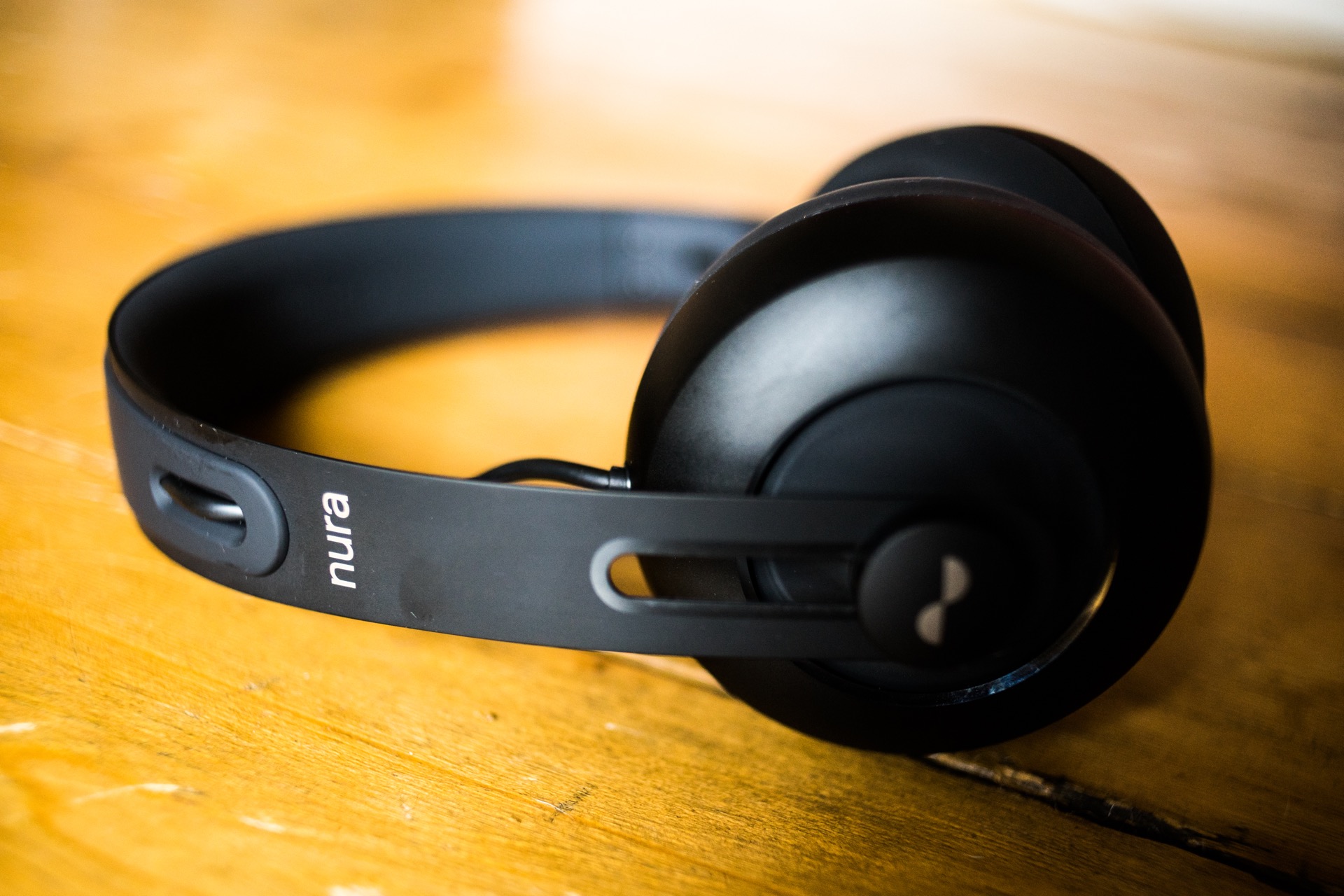
Nuraphone Headphones Review

For the past few months I’ve been bombarded with adverts for some supposedly next generation headphone technology which adapts to your individual hearing, the ‘Nuraphone’. Various industry professionals were shown in the accompanying videos, reacting with apparent amazement at the sound quality. As a bit of an audio geek, I wanted to see for myself whether or not there was anything to the claims, and ended up picking up a pair recently – something that probably also partly confirms that online marketing campaigns really do work.

One thing that’s worth noting is that Nura released a software upgrade for the headphones at the end of July which added a bunch of features, and corrected some issues that people had reported. They even added in active noise cancellation – which wasn’t present before. That is particularly cool, and something that it’s good to see a company do. Newer stock of the Nuraphone come pre-loaded with this update.

Nuraphone

The Concept

Custom Hearing Profiles

The main principle behind the Nuraphone is relatively simple, in theory at least. You first connect them to a smartphone app, where some quick tests result in a custom ‘hearing profile’ being created. This profile is then stored in the headphones, and playback is tailored accordingly – theoretically resulting in sound that is far more pleasing to your ears than a generic approach would provide.

Over and In-Ear Design

The other main defining characteristic of the Nuraphone is their unique over/in-ear design. The outer silicone cup encloses your ears (and doesn’t irritate any of my many cartilage piercings), and delivers bass frequencies, whereas the inner ear portion sits just inside your outer ear, delivering the mid and treble frequencies. This helps provide a nice separation, and a much fuller sound. It works very well, though does feel pretty weird at first.

Immersion Mode

Immersion mode uses drivers in the outer cups to provide ‘feeling of a live performance’. This basically makes the bass much fuller and deeper, without compromising on the quality of the mid or treble frequencies.Nuraphone

What Other People Say

I was intrigued by the Nuraphone, but also pretty skeptical. It didn’t help that the reviews online ranged wildly from the bizarrely enthusiastic to the dismissive. There were many puff pieces from sites who were clearly just happy to get a free pair, but there were also users who claimed that they and their friends had the quality was so good that they had actually been moved to tears on their first listen. Others weren’t as enamoured, angrily dismissing the Nuraphone as nothing but marketing spin, or even suggesting that £30 generic earbuds sounded just as good. Ouch.

In general, many of the criticisms seemed to focus on the following:

  • The design was too heavy and uncomfortable – especially if you have glasses.
  • The sound wasn’t that impressive.
  • The setup was complicated and confusing, resulting in different profiles every time.
  • The ‘generic’ profile that you compare your personalised profile with sounded worse than it should, and that something shady must be going on.

I don’t think I’ve ever seen such conflicting experiences with a single product, which only pushed me to try them out for myself.

My Experience

Setup

Setting up the headphones was as simple as downloading the app, connecting via Bluetooth, and following the on-screen instructions. I had no bother getting the cups in the right place, and despite trying the calibration process a few times, my profiles were pretty much the same each time. It couldn’t really have been much easier.

Nuraphone
Brand new Nuraphone with the plastic wrap still intact.

The one real annoyance is that once set up is complete, you’re encouraged to switch between a generic ‘flat’ profile and your own personalised one to hear the difference. As many people have commented online, the problem is that the generic profile sounds pretty terrible on its own – far worse than you would expect even as a baseline from far cheaper headphones. It’s as if it has been heavily compressed. As a result it all seems a bit disingenuous, and Nura have probably not done themselves many favours by including this ‘feature’.

Comfort

After reading all of the negative reviews, I expected the Nuraphone to be extremely heavy and uncomfortable, but in actual fact, they slipped on with ease; the silicone of both the ear-cups and headband feeling both soft and comfortable. They weren’t particularly heavy – at least not markedly more so than other cans I’ve worn, and even the in-ear protrusions didn’t feel all that bad – going less deep than I expected. As for my glasses, they didn’t seem to make the slightest bit of difference to proceedings.

I wore the headphones for about seven to eight hours on the first day (with breaks), and my ears definitely got a bit sore by the end, though I knew to expect this from the Nura support team, who claimed that the tips of the in-ear portions would soften up with use. Despite this physical discomfort, my ears didn’t ever get hot or sweaty, which seems to be thanks to the use of the ‘TeslaValve’ air-flow technology. Not just a gimmick after all!

After listening to feedback on the issue of comfort, Nura have started to include different tip sizes with new purchases, including small and medium. There are also some third party options out there that are compatible, though whether they have a significant impact on the sound (negatively) is up for debate.

Controls

Many of the fundamental controls of the Nuraphone are contained within the accompanying smartphone app. Some of these can be mapped to a couple of touch sensitive ‘pads’ on the side of the cans – such as volume up/down, play/pause, etc. Both single and double tap gestures are supported, allowing you to choose four controls to make use of.

I personally have volume up and down configured for the single taps, with social mode and play/pause for the double taps. At first I thought this was a bit awkward, but after a day or so I found it really natural, and have even found myself trying to tap on the side of my other headphones out of a force of habit. After using the Nuraphone controls, the physical buttons on my Sennheisers feel a bit clunky and unintuitive.

Speaking of social mode, this is a nifty feature that turns off the active noise cancellation, and turns on microphones to allow you to hear what’s going on without having to take off the headphones. I’ve found this really useful in practice, though it can be a bit disconcerting to have certain ‘exterior’ sounds suddenly amplified louder than they actually are with the headphones off.

It’s not all great news though. The controls themselves are extremely sensitive, with no adjustment possible. Often I would end up accidentally triggering the pads when adjusting my glasses, or just moving my arms about, and I had to continually turn the headphones back down. There are also some functions that can only be accessed via the app, which is a bit annoying. For example, at the time of writing you can’t adjust the level of Immersion mode without being connected to the phone app – which would be handy for switching between genres. I’ve heard from Nura that they are working on a desktop app which would help alleviate this issue for those of us who regularly listen on our computers.

Finally, the controls don’t work when a cable is connected, which is understandable, but a bit irritating, breaking the continuity of experience.

Connectivity

I’ve been dubious of wireless technology for a long time, given the pretty crappy historic quality of even higher end headphones. As a result, I only recently bought into the whole arena and was pleasantly surprised. Still clinging to this, I was put off at first by the prospect of having to buy a separate, expensive analogue cable, but realised that I don’t actually need one for everyday listening.

In terms of the quality of the bluetooth connection itself, it was generally pretty good. For some reason my first pair worked fine with my laptop, but dropped out constantly when connected to my phone when I put it in my pocket. That meant they were totally useless for walking about, and I was restricted to using them when stationary at a desk, or on the couch till they got replaced. Generally though, once this was resolved, the connectivity was good, and I only had the odd blip here and there. Definitely not something that would be irritating or especially notable.

This all leads nicely to my biggest issue with the design of the Nuraphone: the proprietary nature of the cable connection. Apparently in order to allow compatibility with a bunch of separate devices, they had to create a new single port that is used for everything, including charging. I’’m not really convinced by this argument, and it means that it’s yet another cable to carry when travelling, which isn much harder and pricier to replace. The nightmare scenario would be misplacing one while on a trip.

Sound

In the past I have played with various special music EQ apps that provide extra stereo spacing and increased ‘ambience’, but always returned to listening flat, as they never did a great job of applying equally the quality across genres. In other words, what sounded good with electronica would make grunge sound utter garbage. I suspected that this would be much the same with the Nuraphone, and I was pretty disappointed when it seemed to be the case upon first listening. Techno sounded pretty good, but generally the sound was too coloured, with vocals often lost in the mix. It wasn’t until I realised that I had an additional EQ set on my Mac already that was interfering with things that I actually heard what the Nuraphone could do, and my perception completely changed. Why bother even bringing this up? To highlight that it’s important to start with a flat EQ, or you’re going to get a distorted perception of the sound – which is easily done.

While I wasn’t exactly reduced to tears, the sound from the Nuraphone really was pretty impressive, bringing a whole new feeling of dynamism to music that I knew well. It was as if my favourite tracks had been given a personal re-mastering, and it was amazing. I scoured my library to find old songs and re-discover them in a different light. Despite an overall perceivable increase in quality, a lot of this seemed to come down to the ‘Immersion’ mode. When I first read about it, I was dubious. Cranking up the bass so it rattles against your ears doesn’t really ‘capture the feeling of being at a live performance’. However, I have to honestly say that there is something in that claim. With the slider at 75% I could feel every kick of the bass drum in early Green Day albums as if Tre Cool himself was in the same room, and there were times during some songs that genuinely reminded of being at a music festival due to the interaction of instrumentation.

There have been some comments that the Immersion mode is too heavy handed, such as:

The Immersion effect might suit bassheads or movie-watchers, but you’ll get the most balanced sound with it on very low – or turned off.

That hasn’t really been my experience (though maybe I’m a basshead?). Even at a fairly high level (70%), the Immersion mode only serves to add a bit of greater depth to the tracks, and doesn’t result in distorted or farty bass – though there is a definite cut off where this changes. To be honest though, if I wanted a flatter, more ‘balanced’ sound, these are not the headphones I personally would be using in the first place.

How do they compare to my other headphones though? I don’t really have technical details here, but there’s no doubt in my mind that they offer a much more dynamic and engaging sound. My other headphones still sound and feel great, but if I want to really get lost in the music, I’ll go with the Nuraphone every time.

Nuraphone case

Other Stuff

  • Portability: Unfortunately, despite having pretty great passive and active noise cancellation, the Nuraphone don’t seem especially great for travelling. They don’t fold down, and the protective case is pretty chunky. I still need to decide whether or not they are worth sacrificing precious space for in my carry on.
  • Audio fade in: The Nuraphone have a built in ‘fade in’ to the audio when they start playing back from silence. That means that if you fire up Spotify, stick on the headphones, and start playing a track with a banging intro, it ends up lacking punch. I can see the benefit of this feature when you put the headphones back on – to avoid getting blasted mid-song at full volume, but this should 100% be an optional feature, not something that can’t be turned off.
  • Noise cancellation: The passive noise cancellation of these headphones is pretty decent already, but the active noise cancellation is especially good. The combination seems to block out more ambient noise than my Sennheiser HD 4.50 BTNC cans, and it’s pretty amazing to hear the difference toggling ‘social mode’ on and off makes.
  • Battery life: The Nuraphone boast an impressive 20 hour battery life. I haven’t tested them continuously, but what I do know is that the headphones arrived on a Monday; I used them heavily, and by Friday morning they were only down to 40%. In practice this means I’d only really need to charge them about once a week, which is pretty great.

Conclusion

I really didn’t want to like these. Despite having a glimmer of hope that they might be decent, I planned to try them out for a few weeks then send them back after discovering that they were mostly just marketing puff after all. However, that isn’t how things worked out.

The truth is that I really like the Nuraphone. The sound is different to anything I’ve heard before in a set of headphones, and the Immersion mode really helps bring certain kinds of music alive. I’m excited about listening to music again, and for that reason alone they are well worth the money for me. If they only took standard cables, and folded down to be a bit more portable, it’d be tough to find any big flaws.

They retail for £349, but you can often find 20% off discount codes on Reddit.